SAP GUI Scripting
SAP GUI
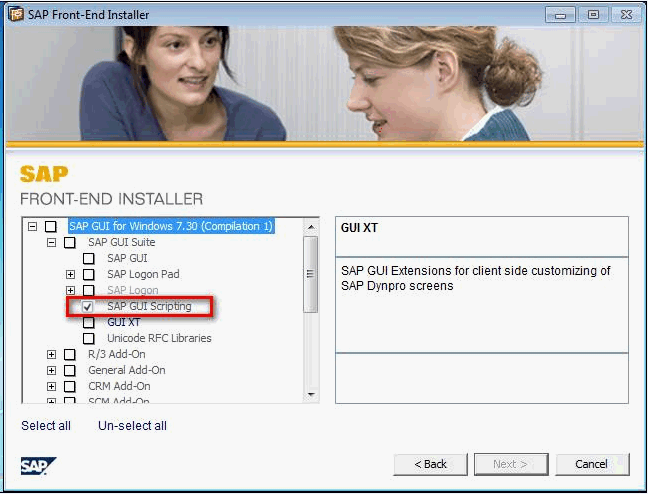
If script support is not installed, it is best to ask your administrator whether SAP GUI scripting can be installed using the SAP FRONT-END INSTALLER.
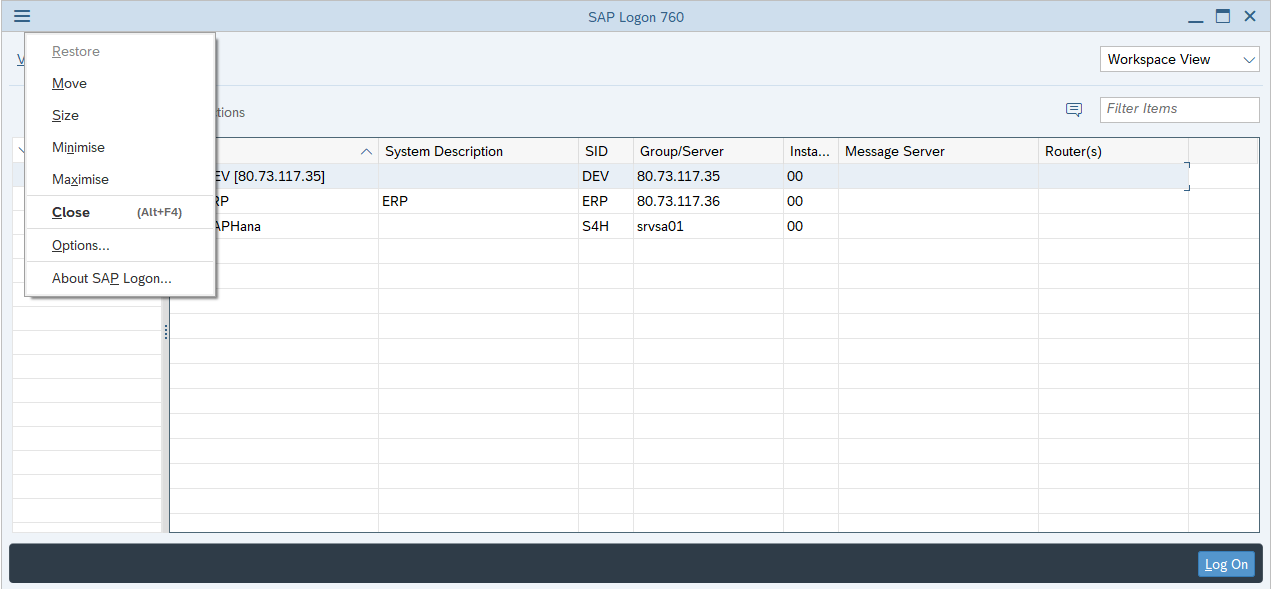
Script support must be activated for SAP Logon. To do this, open the SAP Logon and click on the three parallel lines in the top left-hand corner. Then select the Options:
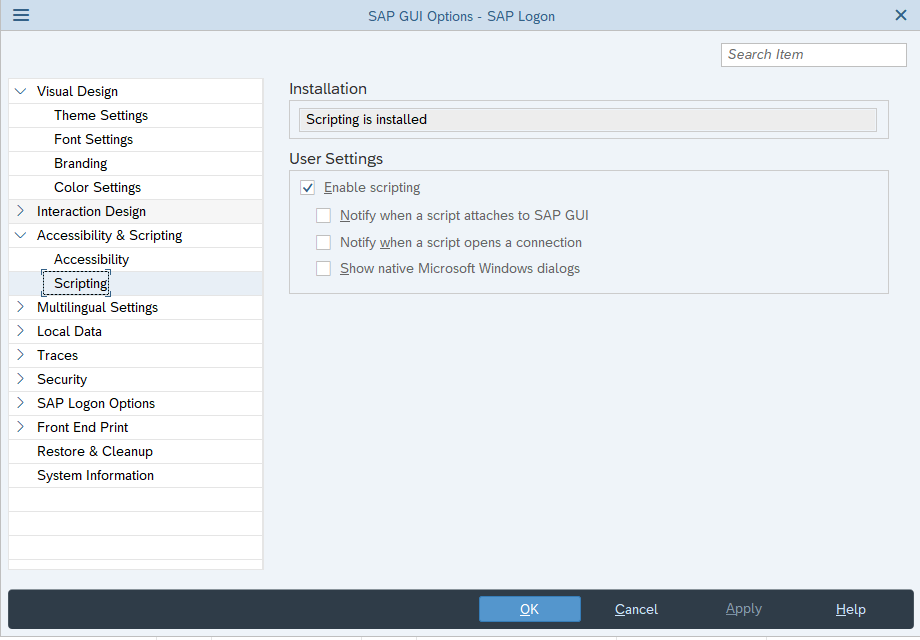
Now select Script support in the Accessibility & Scripting tab. Now you can see if the script support is installed. If it is installed, you can activate the script support.
If the scripting is enabled, please deactivate all checkboxes below.
SAP-System
Authorization rights
The authorizations only need to be checked or set if the parameter sapgui/user_scripting_per_user is set to TRUE.
Authorizations for SAP-Users
Your SAP administrator must ensure that you have the necessary authorisations:
| Authorization | Class |
|---|---|
| S_SCR | BC_A |
Authorizations on the server
If you have more than one SAP instance and want to use dab Link on all instances, activate the checkbox Switch on all servers
- Open the transaction RZ10 and change the parameters as shown below:
| Parameter | Value |
|---|---|
| sapgui/user_scripting | TRUE |
| sapgui/nwbc_scripting | FALSE |
| sapgui/user_scripting_disable_recording | FALSE |
| sapgui/user_scripting_force_notification | FALSE |
| sapgui/user_scripting_per_user | FALSE |
| sapgui/user_scripting_set_readonly | FALSE |
Report extraction
This function is available with SAP Logon Version 800 or higher.