'XLSX' ignored
Issue
The error may occur if:
- the installation of the Microsoft Access Database Engine is not complete
- it is a server table
Solution
The installation of the Microsoft Access Database Engine is not complete
You can check the installation of the Microsoft Access Database Engine with the following steps:
- call the Control Panel
- click in the Programs menu on Uninstall Programms
- search in the list for the entry Microsoft Access database engine xxxx (English/German) -> the specification xxxx stands for the year
- the data should be larger than 100 MB: if the data is smaller, an error occured during installation or the file was modified by the firewall or an antivirus program during the installation
Server table
-
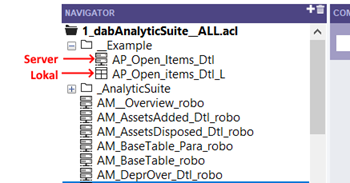
within your ACL project the tables are displayed on the left side in the navigator
-
next to the name of the table is a symbol:

-
if you have the following symbol next to the table, then it is a server table:

Perform the following steps to turn the server table into a local table:
- click on Analytic Job Details in the Analytics Exchange Client
- click with the right mouse button on the table you need
- select Export from the menu that appears
- a new window will open where you have to specify where you want to export the data to
- you have to check Export data files along with selected definitions?: this will cause the table to be saved locally
- open the ACL project, next to the table you should now see the following icon:

With AX you can follow the steps described above to export to Excel.
At Robotics, the following description is a solution for exporting to Excel:
This also works with AX, if the checkbox Export data files along with selected definitions? is not checked when creating the project.
Why does the export of results to Excel fail?
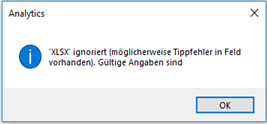
This error message is displayed when trying to export a server table to Excel.
To create a server table locally, please proceed as follows (follow the numbering on the following image):
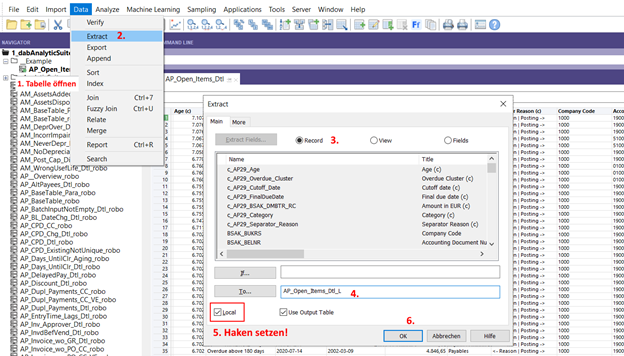
Then open the local table you just created and export it to Excel as usual.