Installation
Client Installation & Server Installation
Make sure that you are using the currently available version of dab AnalyticSuite. The dabanalyticsuiteconfiguratorserver_5.x.x.zip and dabanalyticsuiteconfiguratordesktop_5.x.x.zip are available in the customer portal of dab. Depending on whether you want to run the dab AnalyticSuite on HighBond Robotics (Server) or Analytics (Desktop), download the corresponding setup.
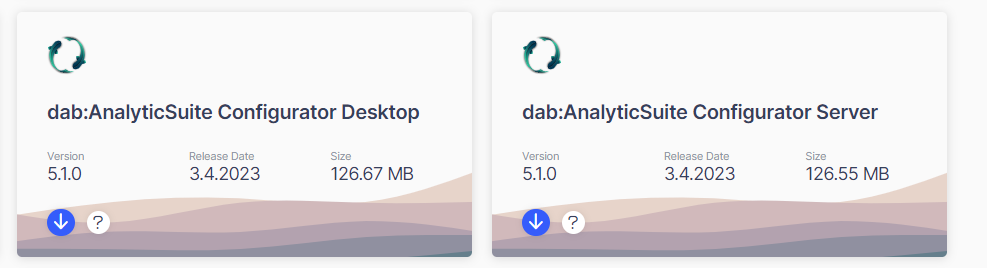
Unzip the dabanalyticsuiteconfiguratorserver_5.x.x.zip or dabanalyticsuiteconfiguratordesktop_5.x.x.zip file and run the executable as administrator.

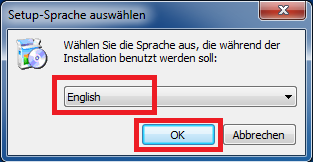
Choose the language which should be displayed during the setup and click OK
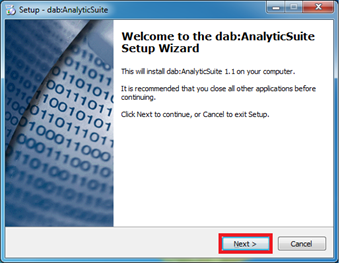
Click on Next
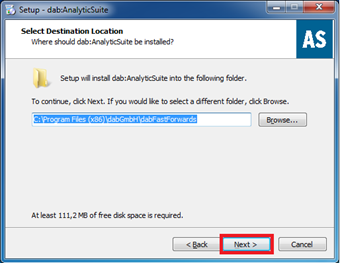
You can change the installation folder of the application. Afterwards click Next
The installation begins after clicking on Install
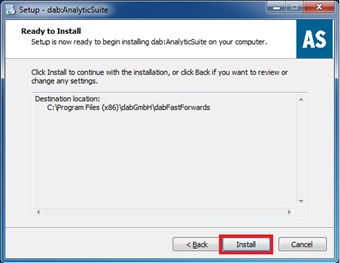
During the installation several console windows appear. Those are responsible for migrating data of previous dab AnalyticSuite versions.
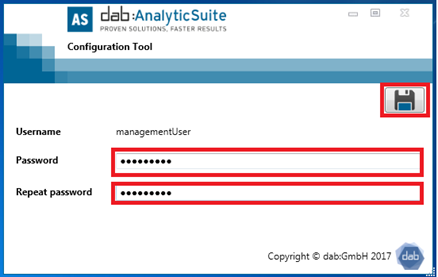
At the end of the installation, the Management Tool opens. If this is the initial installation you will need to enter a password for the management user.
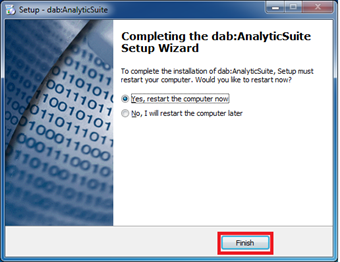
When you close the management tool, the window appears to exit the setup. If this is the initial installation the PC or the server has to be restarted otherwise you can continue without a restart.
Management-User Setup
With the management user you can log in to the options dialog of the dab AnalyticSuite and make changes to the users.
You can start the Management tool as follows:
- Directly after the setup
- With the program dabGmbH.AnalyticSuite.InitialConfiguration.exe which is located in the installation directory of the dab:AnalyticSuite (Default: C:\Program Files (x86)\dabGmbH\dabFastForwards\InitialConfiguration)
To set a password or update the existing password for the management user enter your desired password in the Password and Repeat password fields. You can save the password by clicking on the disk icon.
After login you have to edit the following items:
- Activate the license
- Create a user
- ACL Settings