Data Source
SAP System
To create a new SAP system, click on Admin Settings, select Data Sources and then click on the + SAP System as shown in the image below:
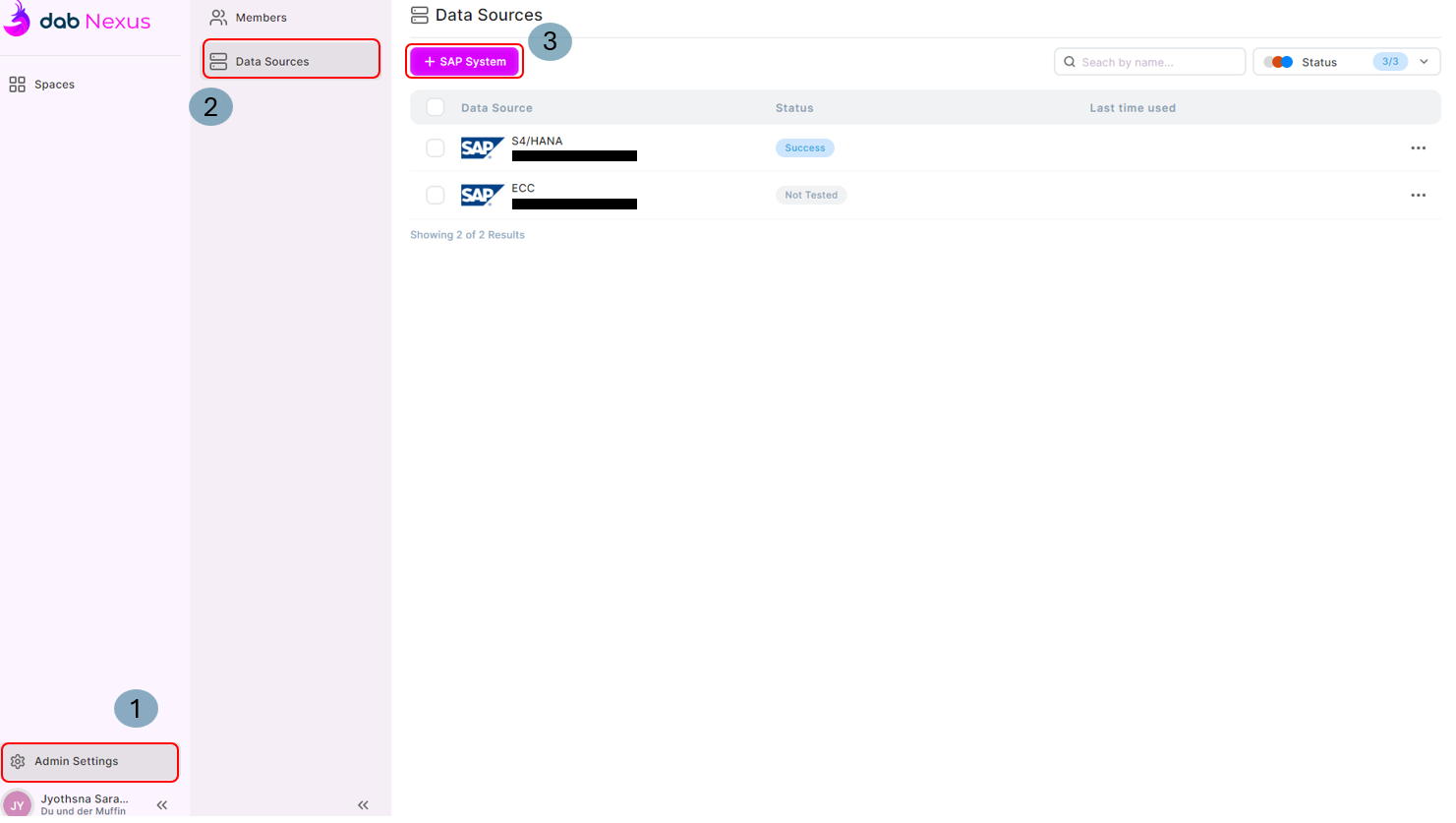
- Search by name: When you have a lot of SAP systems, then use this search field to sort through the added systems.
- Status: This is defined depending on the test result of the SAP connection test. Not Tested, Failed and Success.
- For each SAP entry in the dashboard, at the end of the row, on clicking . . . you can find the following options:
- Test connection: Test the SAP connection
- Clone: Clone the SAP system connection
- Delete Data Source: Deletes the SAP system connection

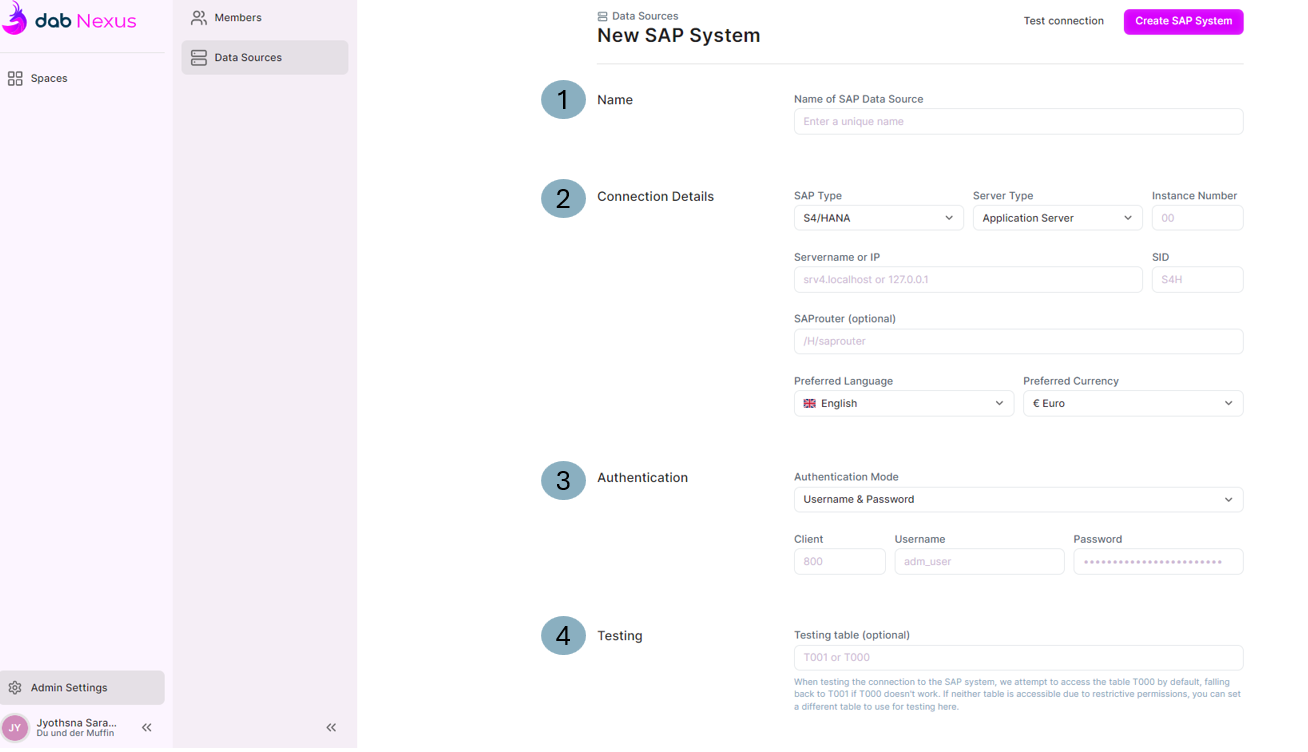
On clicking the + SAP System, the webpage to add the new SAP system opens:
-
Enter a unique name for your SAP Data Source
-
Connection Details:
- SAP Type: There are 2 options > S4/Hana and ECC
- Server Type:
- Application Server along with Instance Number
- Message Server with Group
- Servername or IP: Enter your SAP server name or IP
- Preferred language: Choose the language
- Preferred Currency: Choose the currency
-
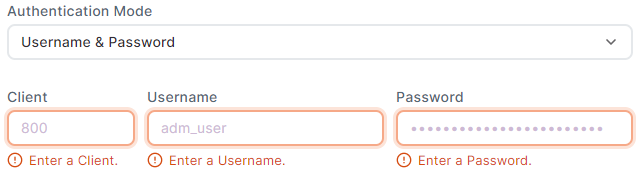
Authentication: There are 3 authentication modes: a. Username & Password: The fields Client, Username and Password are required:
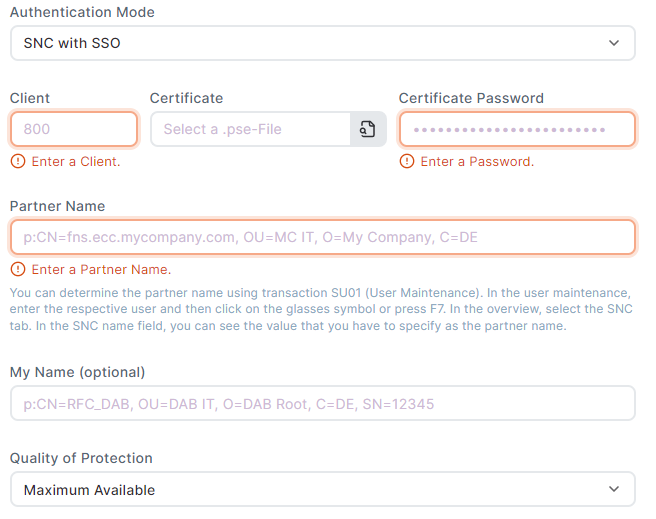
b. SNC with SSO:
- Client
- Certificate: Upload the .pse certificate. Refer to this article to create a PSE certificate
- Certificate Password: Enter the certificate password
- Partner Name: You can find the partner name in transaction SU01 of the corresponding user - select the SNC tab. The SNC name field value is the partner name
- Quality of Protection: Choose from these options: Authentication, Integrity, Privacy and Maximum Available
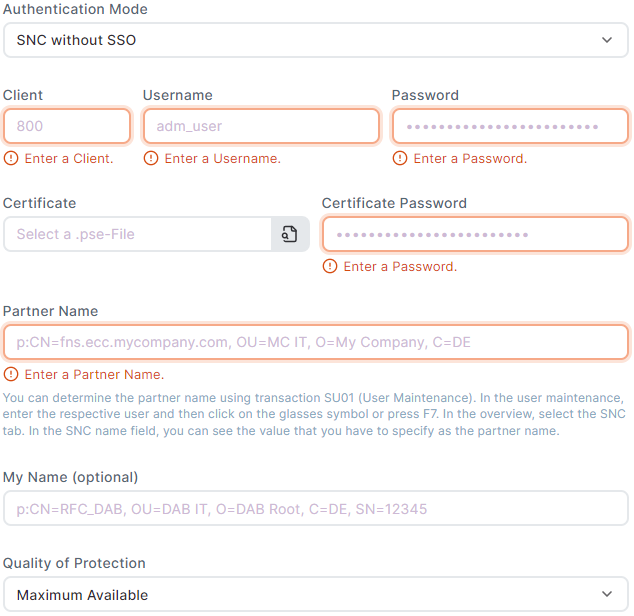
c. SNC without SSO:
- Client
- Username
- Password
- Certificate: Upload the .pse certificate. Refer to this article to create a PSE certificate
- Certificate Password: Enter the certificate password
- Partner Name: You can find the partner name in transaction SU01 of the corresponding user - select the SNC tab. The SNC name field value is the partner name
- Quality of Protection: Choose from these options: Authentication, Integrity, Privacy and Maximum Available
Test Connection
Once the required fields have been entered, you can Test your connection by clicking on the Test connection button:
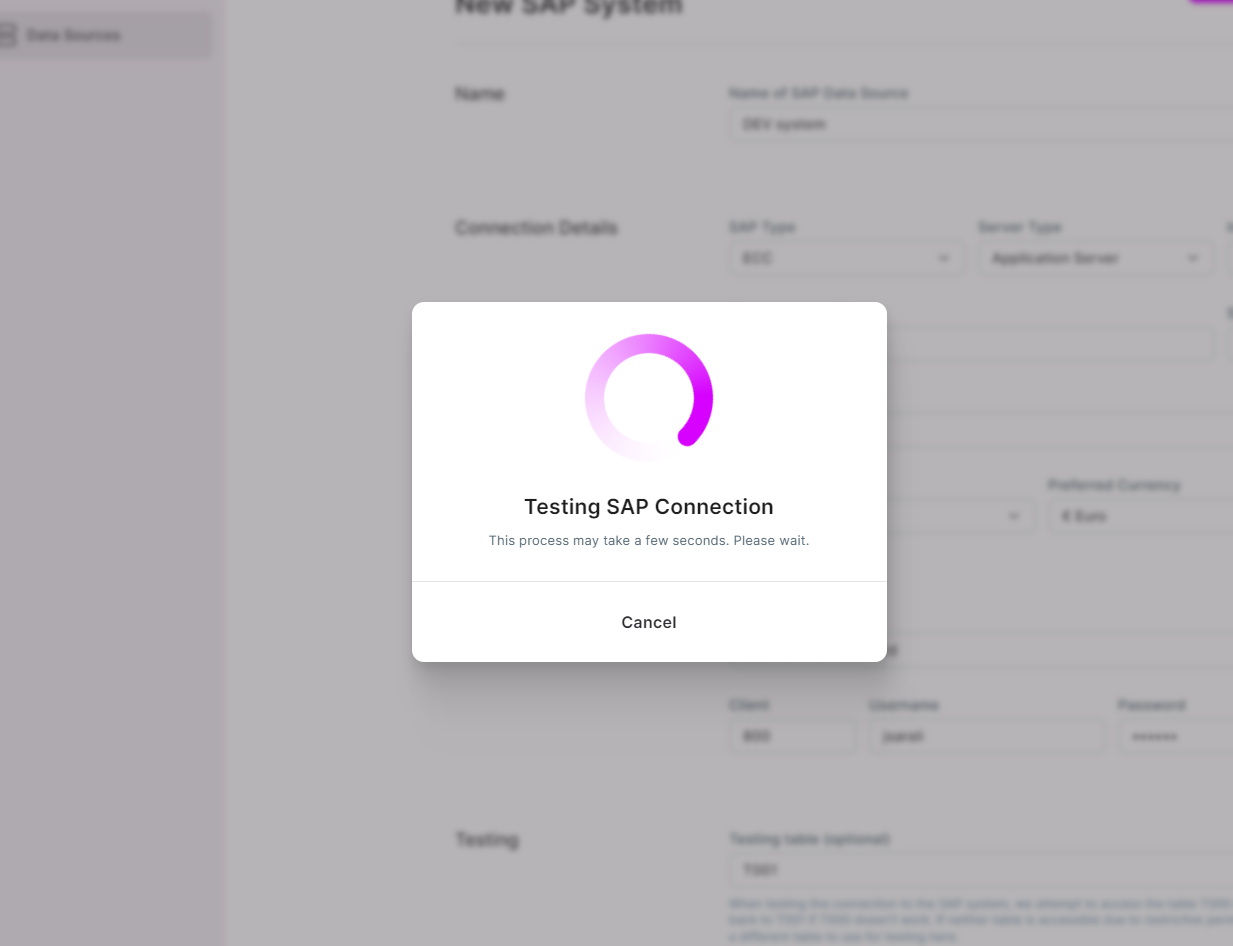
On success, you get a pop-up message saying the Connection works:

On failure, a pop-up message displays the error details for troubleshooting. Even if the Test Connection fails, the SAP system can still be saved:
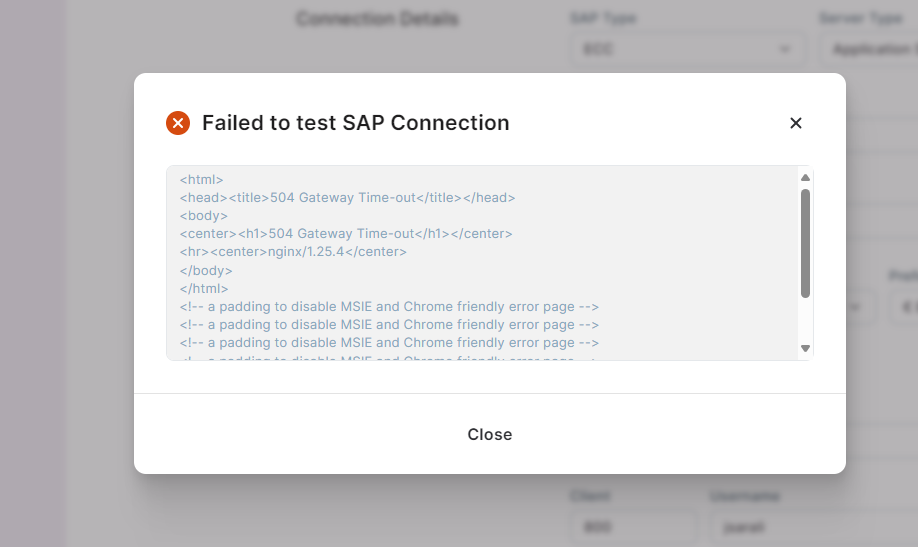
The SAP system can be created and saved even without testing the connection:
