Reports
Depending on your use cases, select from the variety of pre-built reports in Power BI. The plattform manages data extraction and analysis, providing ready-to-use insights.

Select Spaces: Under the Space, you can create your Reports. Click on + Report to create a new Report. This opens the New Report window. When you click Cancel, you navigate back to your Space.
In the below image, the top right corner shows the steps needed to be completed to run a Report.
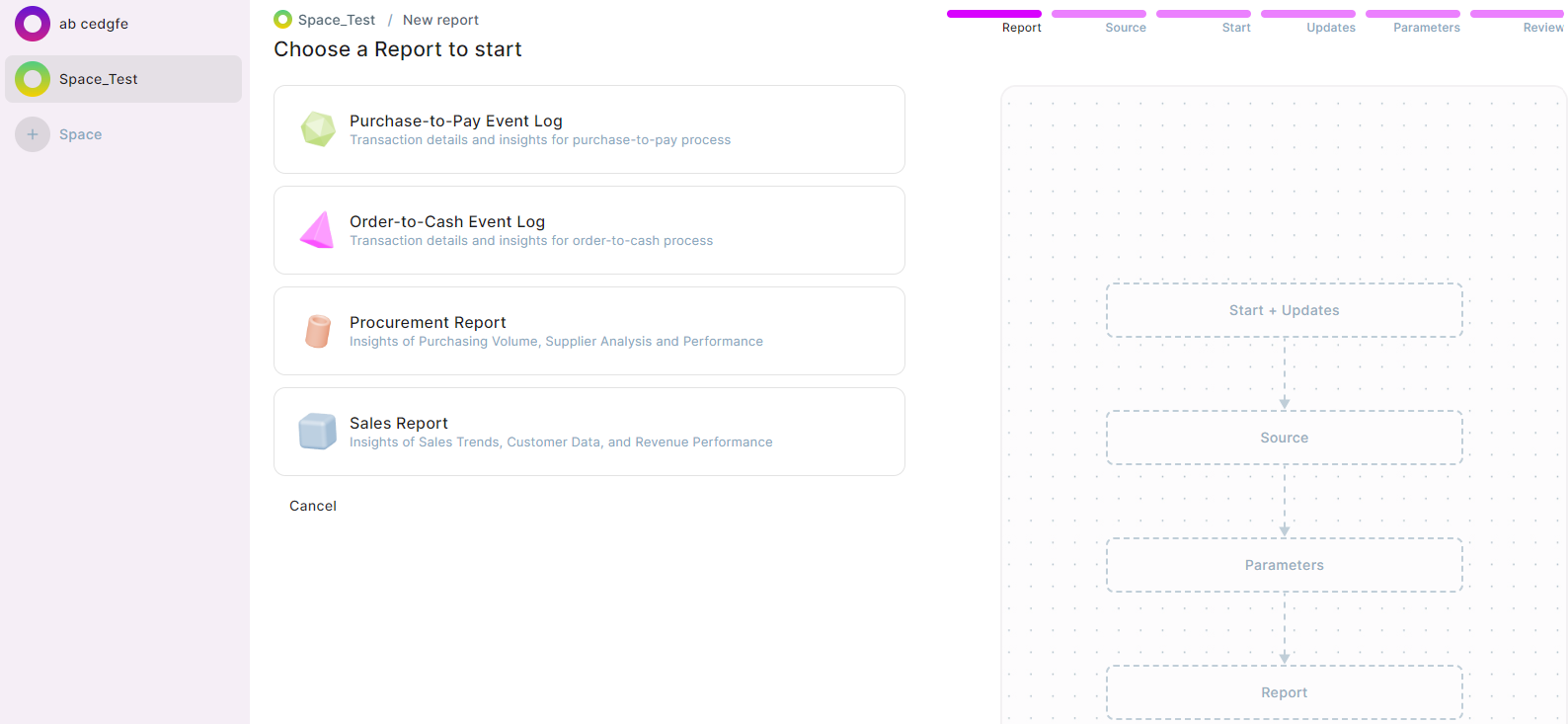
Choose a Report to start. The pre-built reports available are:
- Purchase-to-Pay Event Log: Transaction details and insights for purchase-to-pay process
- Order-to-Cash Event Log: Transaction details and insights for order-to-cash process
- Procurement Report: Insights of Purchasing Volume, Supplier Analysis and Performance
- Sales Report: Insights of Sales Trends, Customer Data and Revenue Performance
Workflow
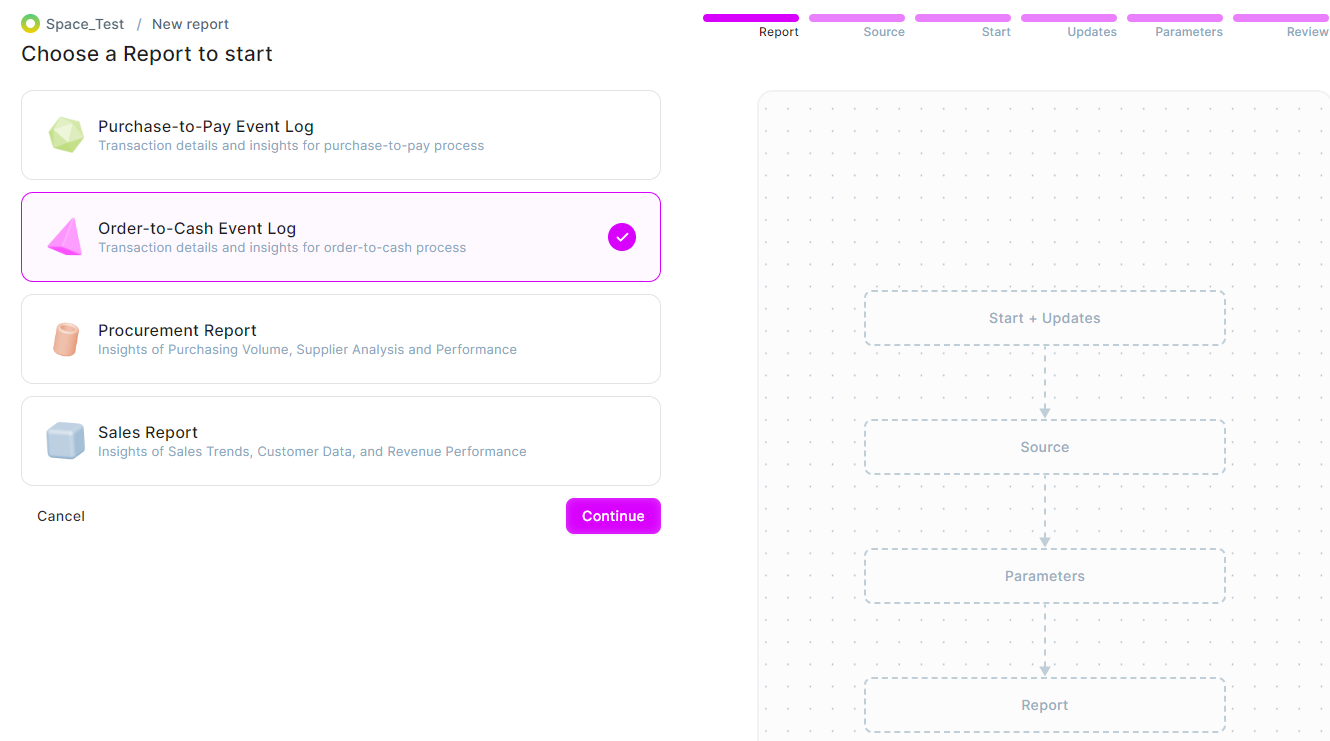
- Choose a Report - Below is a workflow for Order-to-Cash Event Log. Select a Report and then click on Continue:
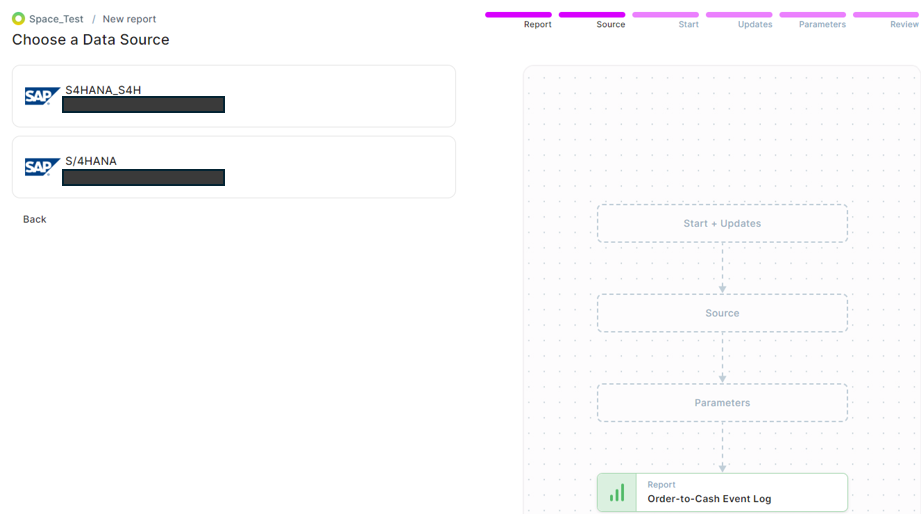
- Choose your Data Source - Select a SAP system that you have added in the Data Source:
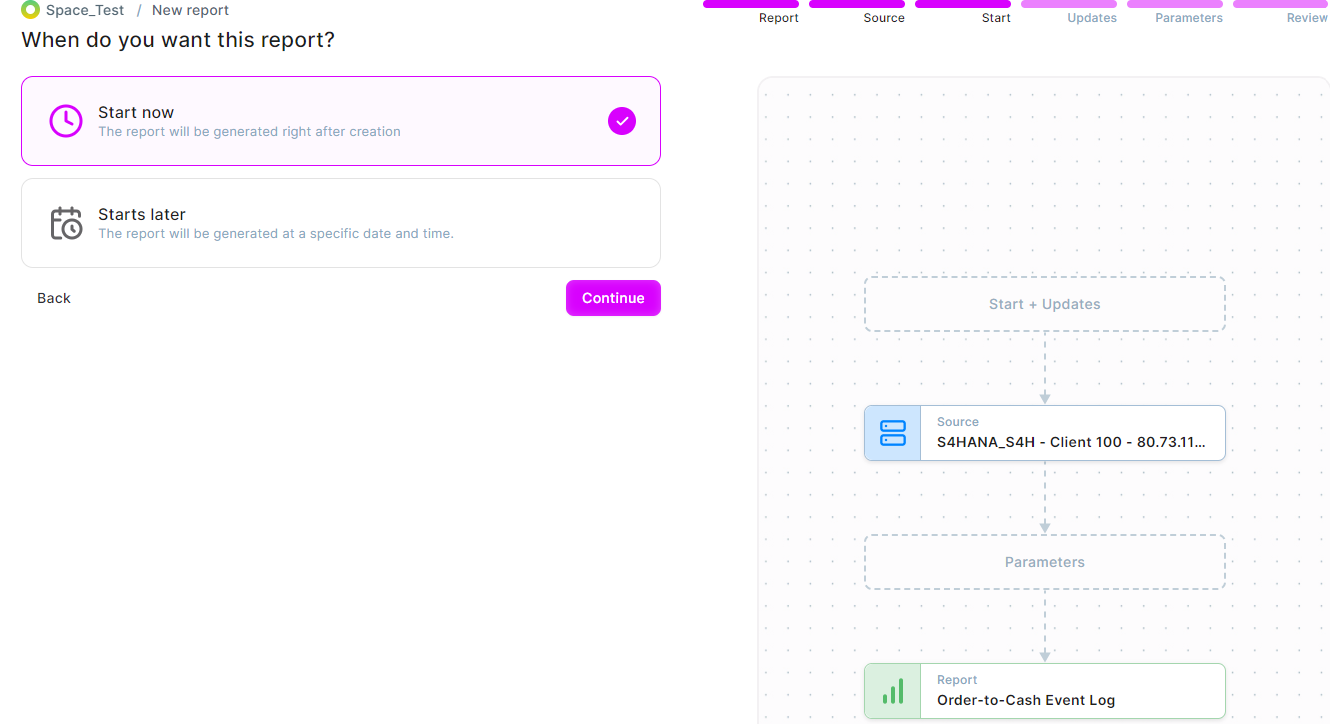
- Start: This step is the Scheduling plan for your report
- Start now: Report is generated immediately after creation
- Starts later - The report will be generated for the planned date and time. Date and Time are required fields. Select the time zone.
- Updates: You can keep your Report up-to-date. There are 2 options:
a. No updates - Report will only be generated once and will not have any updates
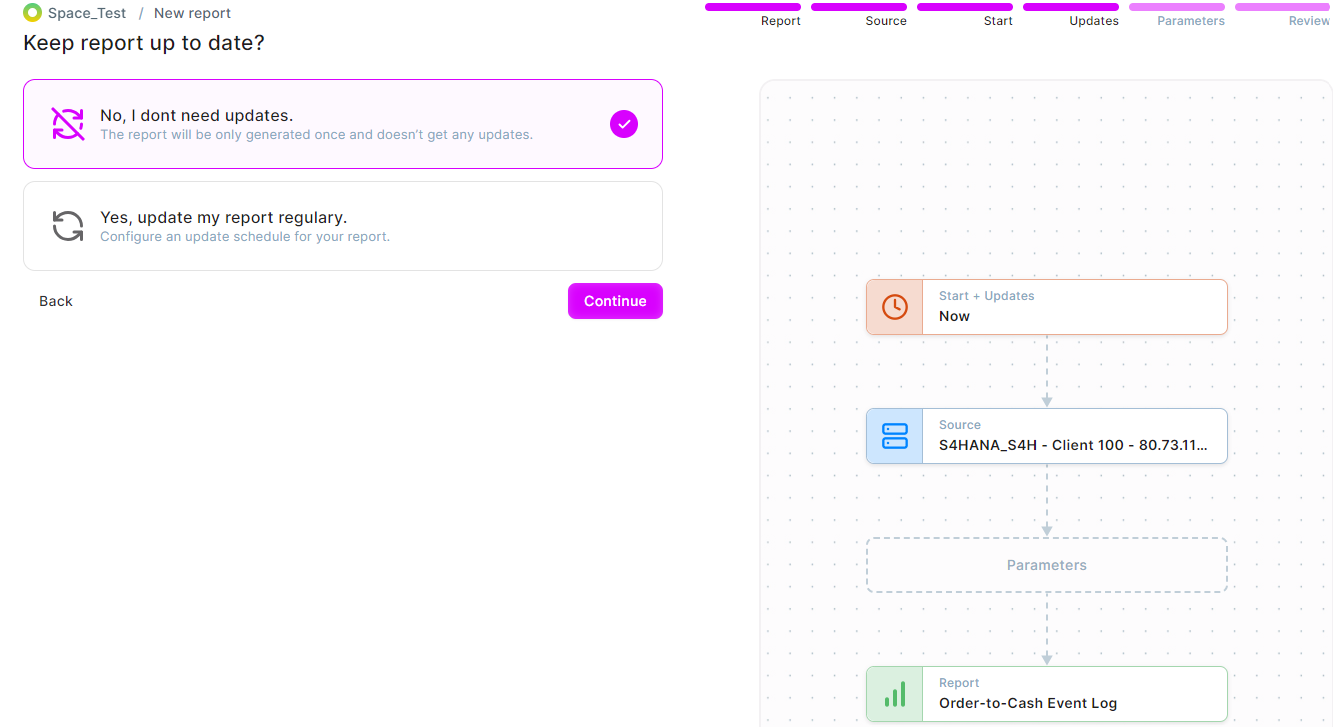
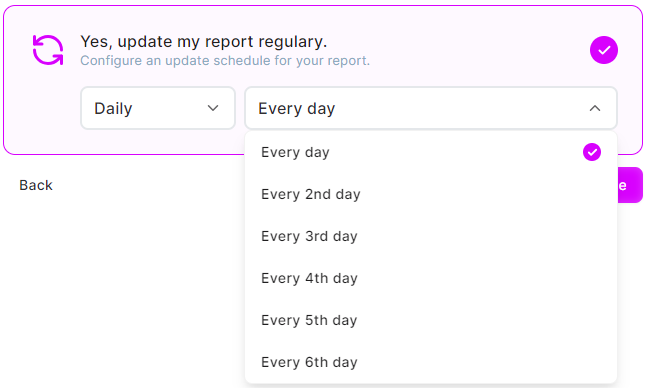
b. Scheduled updates - There are Daily and Weekly update options as shown below:
- Daily: Select which day you need the update:
- Weekly: You can select the days of the week by clicking on them individually. For example, in the below image, Monday, Wednesday, Thursday and Friday are selected and you can see the options displyed in the workflow on the right side of the screen:

-
Parameters: The highlighted fields are required:
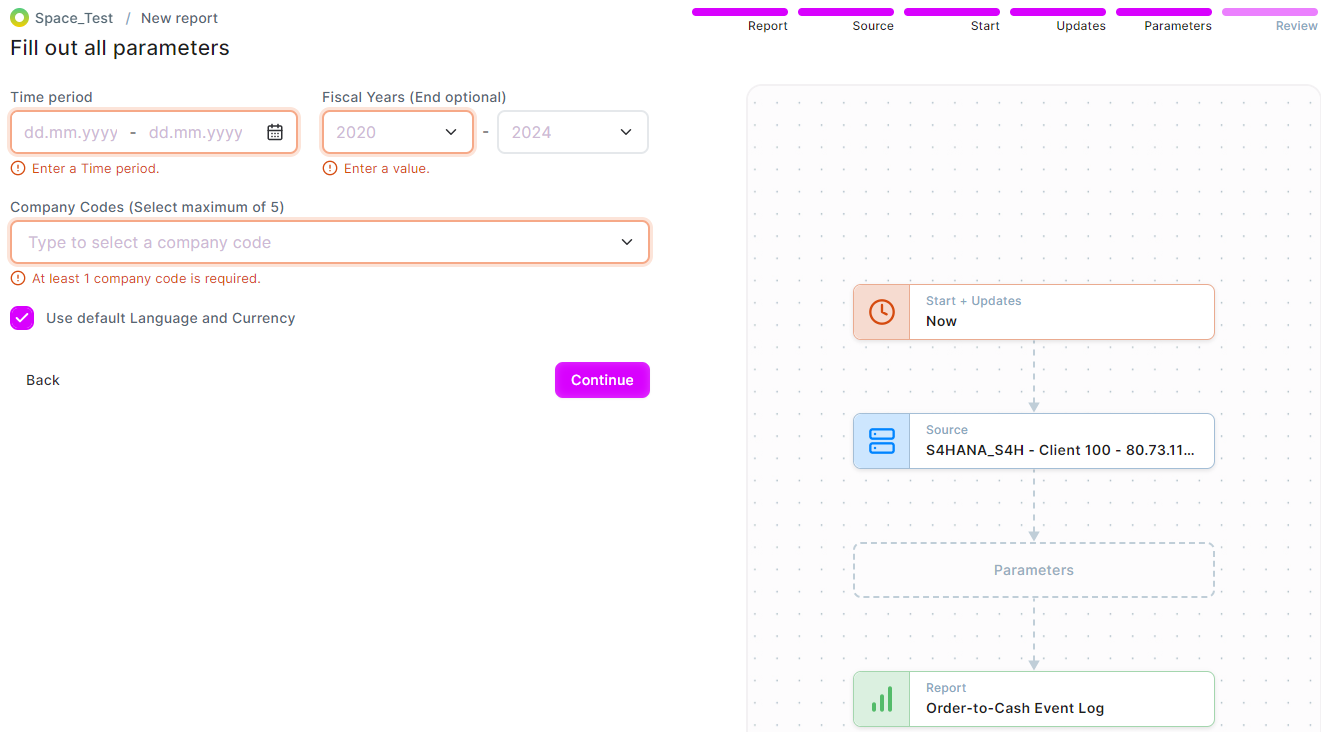
- When the Use default Language and Currency checkbox is checked, the default is the Preferred Language and Preferred Currency you have set in your Data Source (SAP system):

- When the Use default Language and Currency checkbox is checked, the default is the Preferred Language and Preferred Currency you have set in your Data Source (SAP system):
- Review: The Review step shows all your selections for the Report. You can change the name of the Report:
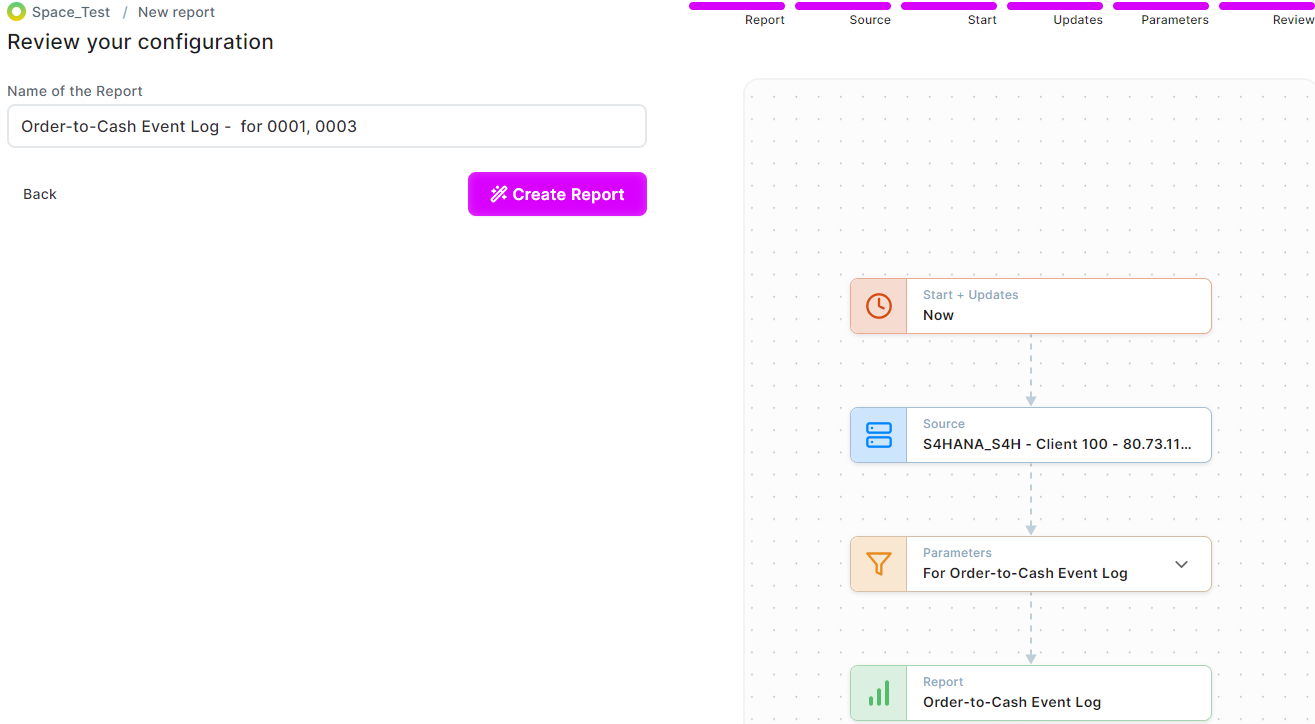
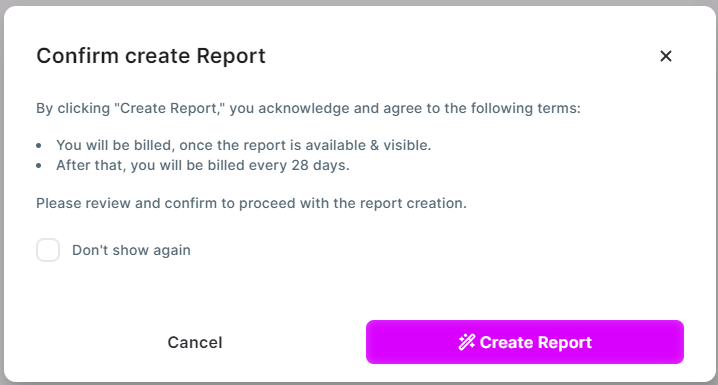
On clicking Create Report, the following pop-up is displayed:
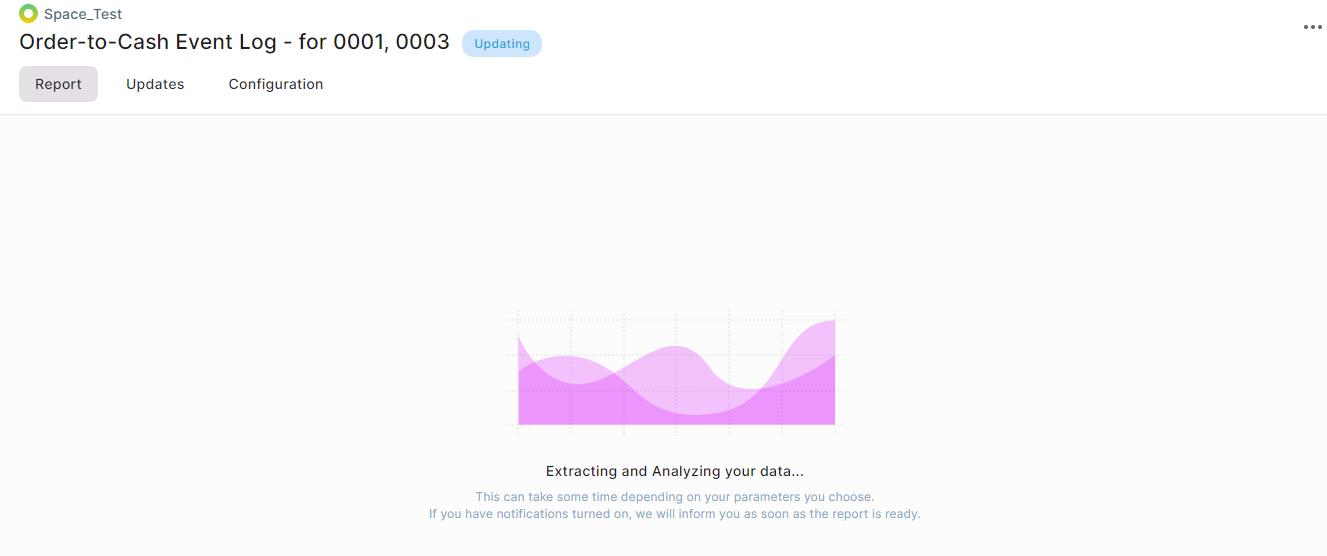
Report Overview
Once you click on the Create Report of the dialog window, you will be directed to the Overview:
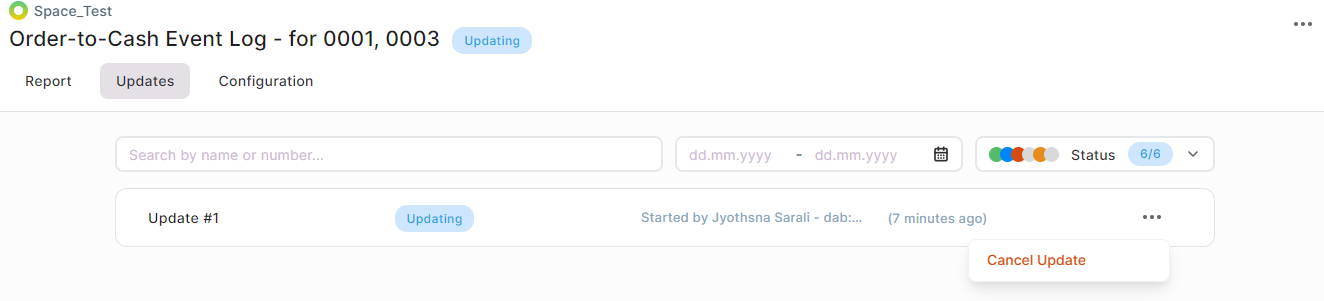
Updates
You have an option to cancel the Update:
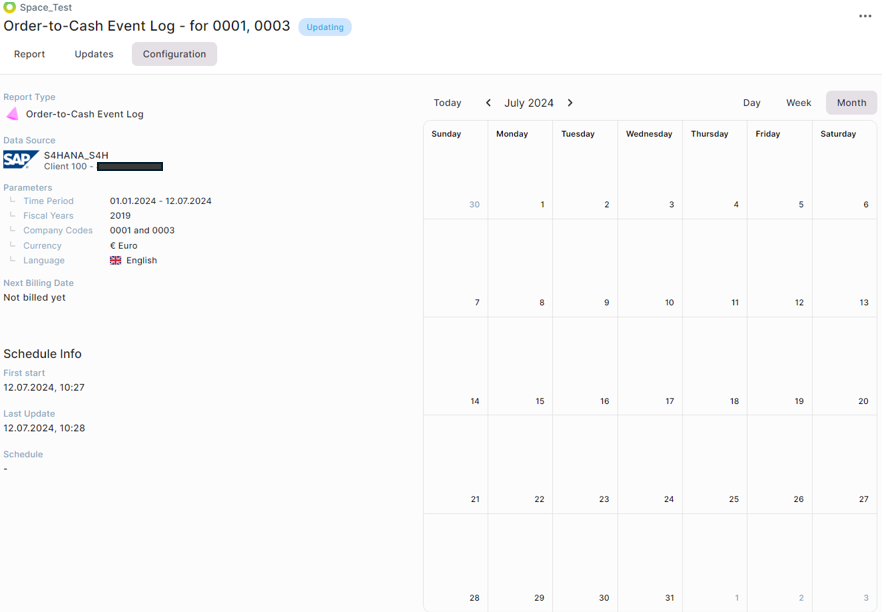
Configuration
The complete overview of the configuration set for the Report is displayed here:
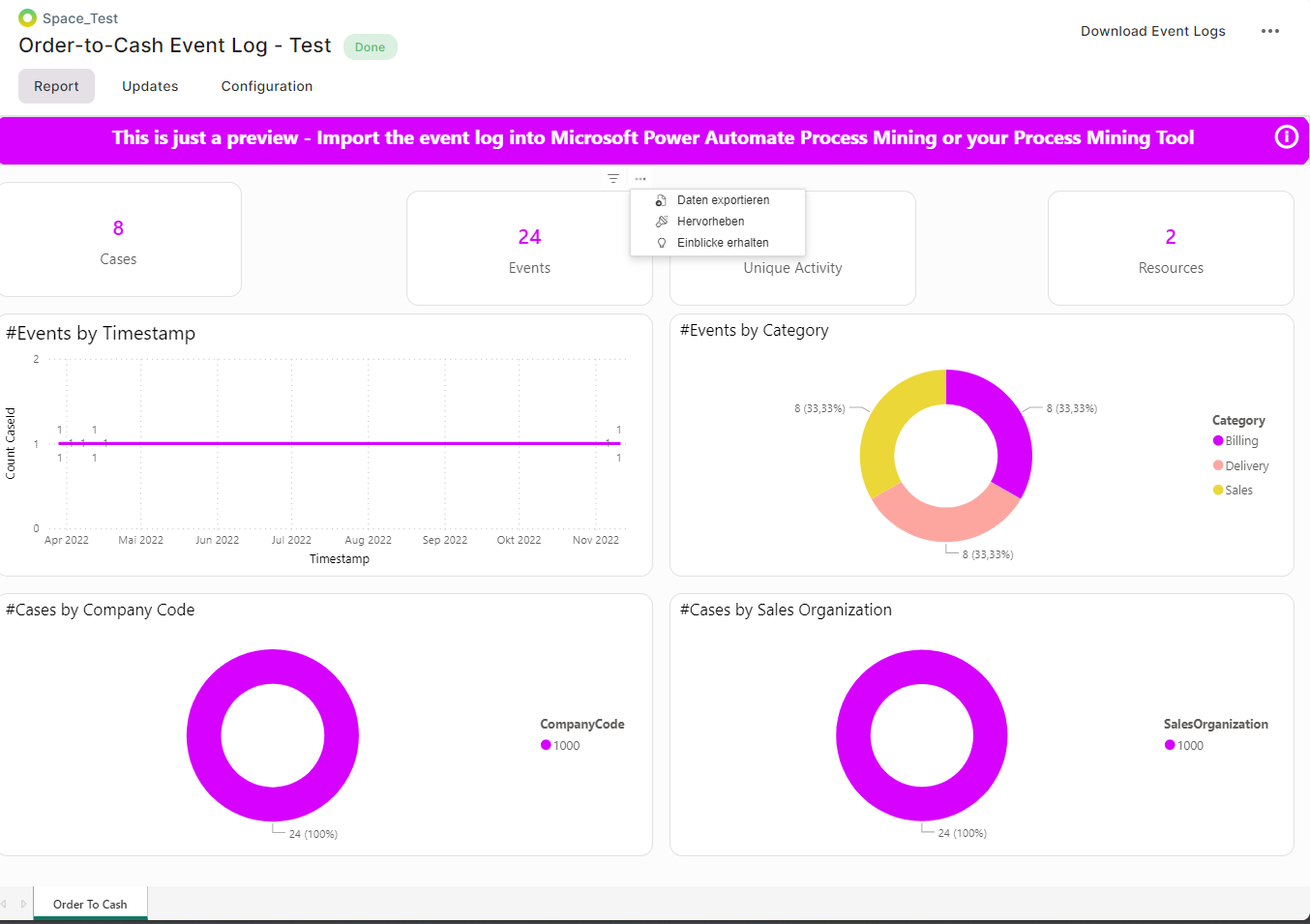
Once your Report is completed successfully, you will see the status of your Report change to Done.
Download Event Logs: You can download the Evcent Logs as an Excel-file:
Report Settings
On clicking the ... you will be provided with the following options:
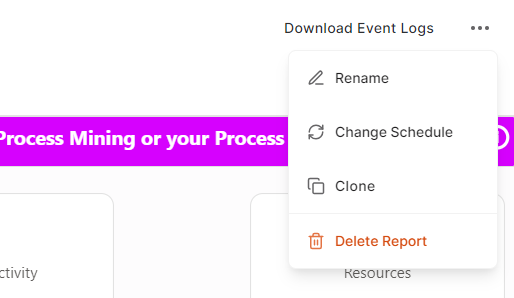
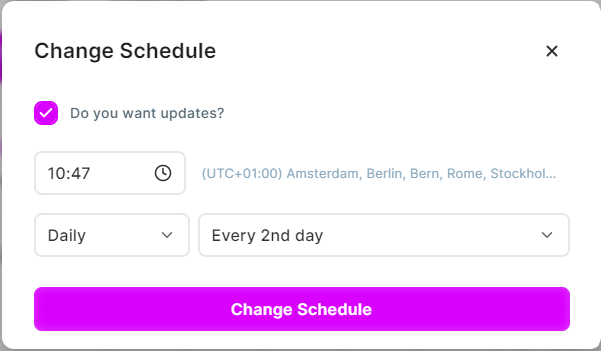
Change Schedule - Add updates: