Spaces
What is a Space?
Spaces are an organisational element of dab Loom. A user can create and schedule reports in a Space. Spaces can be created by both users and administrators. The user sees only his own Spaces. Admins see all Spaces in the organisation.
Create a Space
Please note that there can only be up to 5 Spaces in an organisation.
To create a Space, there are two ways:
-
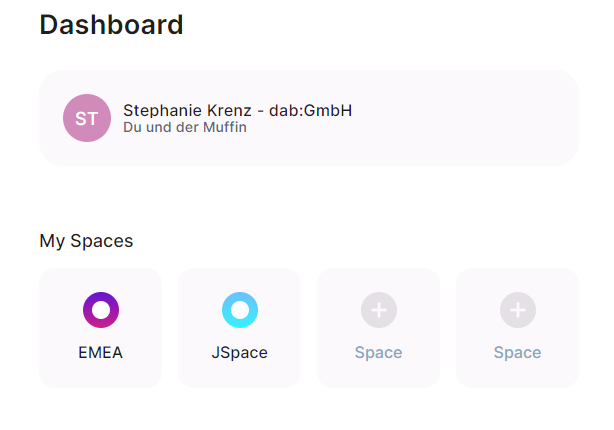
In the Dashboard: click on +Space
-
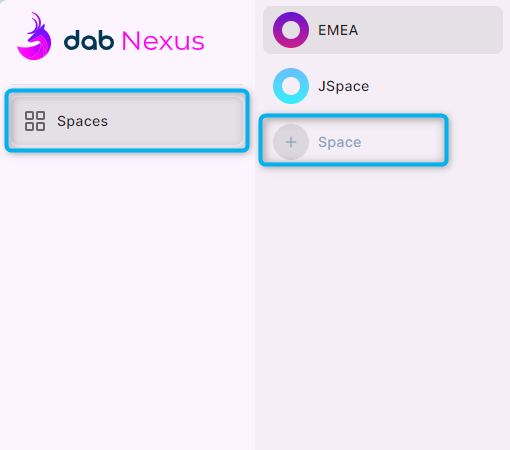
In the Spaces tab on the left of the screen: Click on Spaces and then on +Space
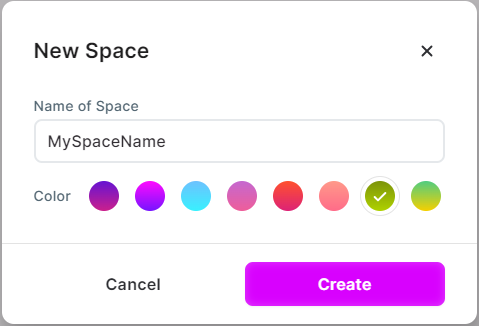
Enter a name for the Space and choose a different color if you like. Then click Create.
If you want to cancel creation, click Cancel.
Deleting a Space
Deleting a Space will permanently delete all reports and data associated with it. The deletion can't be reversed.
-
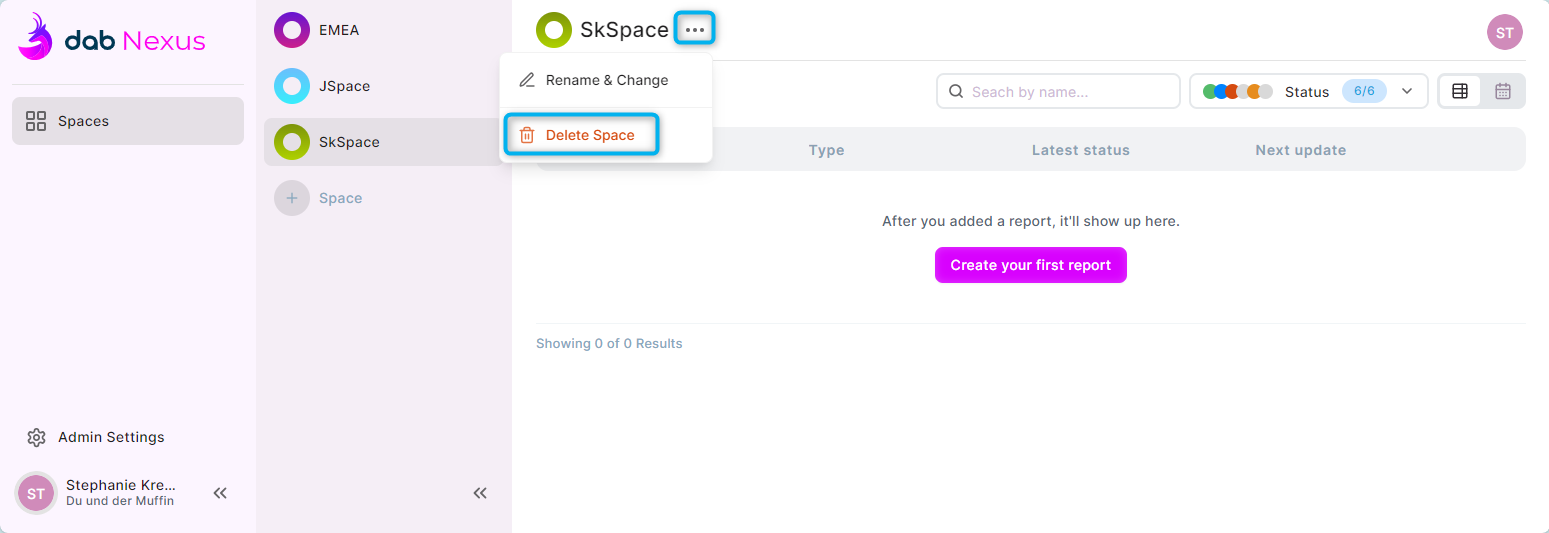
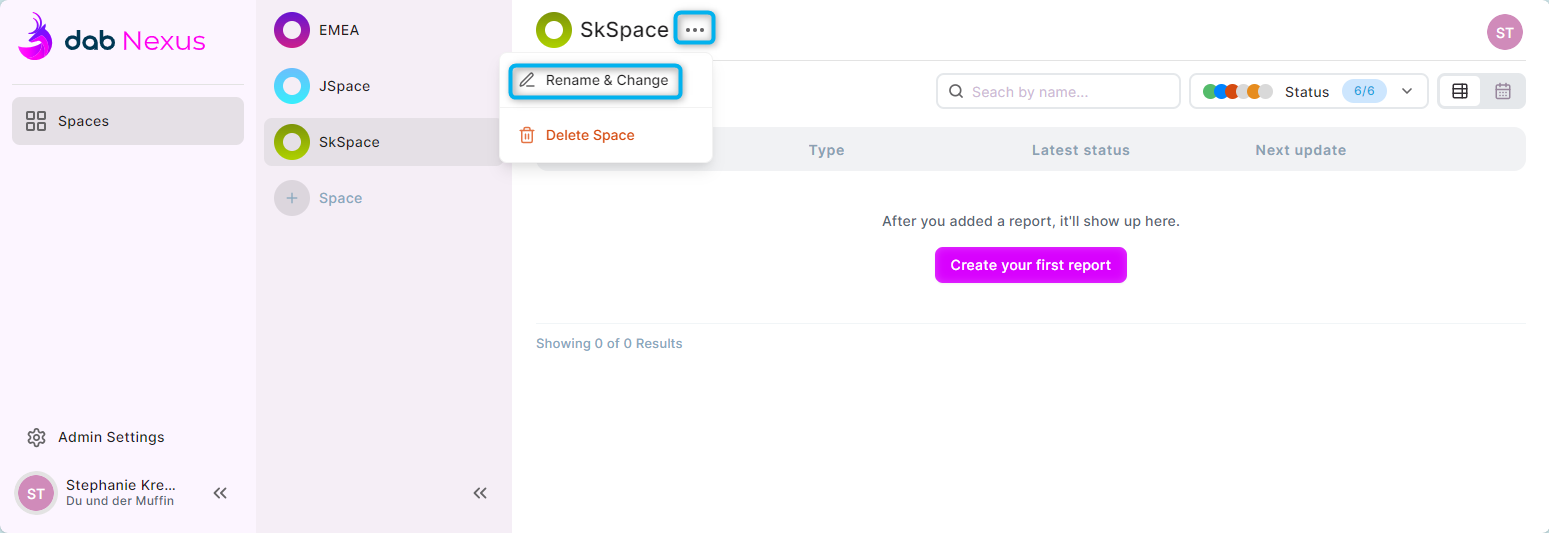
Open the Space you want to delete. Click the three dots to the right of the Space name and then click Delete Space:
-
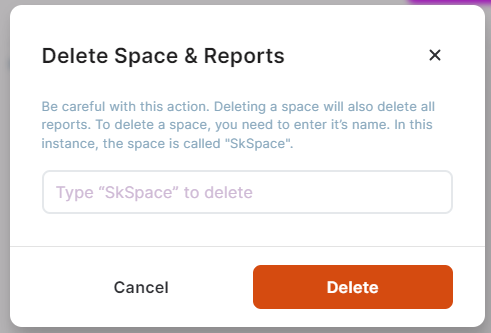
For security reasons you must enter the name of the Space (case sensitive - if the name is misspelled you'll get an error message), then you click on Delete:
-
To cancel the deletion, click on Cancel:

If the deletion was successful, you will see a popup at the bottom of the screen.
Change or Rename a Space
Open the Space you want to change or rename. Click the three dots to the right of the Space name and then click Rename & Change:
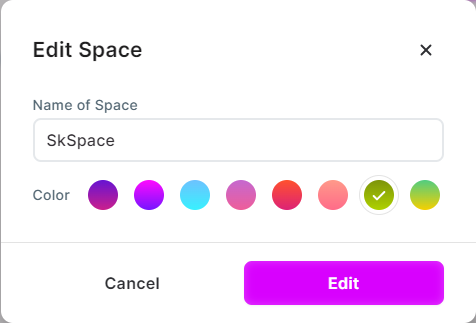
You can enter a new name for your Space and change the color if you like.
Click Edit to confirm your changes. To close the popup without saving, click Cancel.
Further functions
The following functions are available in the Space Overview:
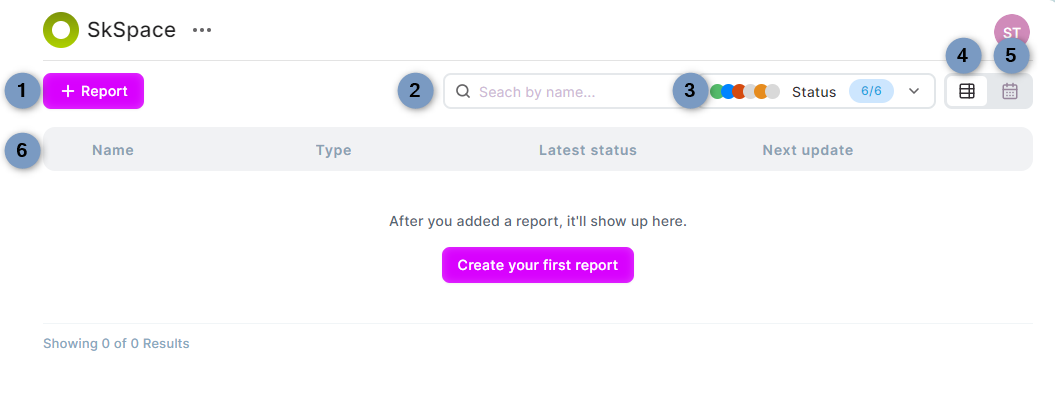
- Report: You can add a report by clicking +Report or Create your first report, if you have not yet created one. For more information on how to create a report, read this article.
- Search: You can search for a specific report if you have a number of reports. Enter the name of the report in the search bar to filter the existing reports in the Space.
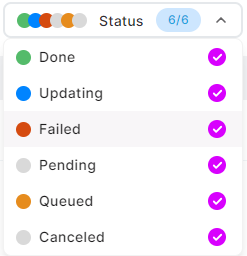
- Status: You can filter all reports by their current status. You have the following statuses:
- Done (green) - Report has been successfully executed
- Updating (blue) - Report is currently in progress
- Failed (red) - Report execution failed
- Pending (grey) - Report hasn't been executed yet
- Queued (orange) - Report is waiting in the queue to be executed
- Canceled (grey) - Report cancelled by user
- Table Overview: The table displays all reports within that Space. This includes the report name and type. Types are: Purchase to Pay, Order to Cash, Procurement and Sales. You will also see the latest status and next update (if scheduled) and functions to rename, clone or delete the report.
- Calendar Overview: When reports are (repeatedly) scheduled, they are listed in the calendar.
- Report Overview: Here you see all existing Reports for the selected Space.
Space Authorisations
- Users: Users will only see Spaces that they have created.
- Admins: Admins will see all Spaces created in the organisation (up to 5).
Space Ownership
If you want to delete a user who is the owner of a Space, this ownership must be transferred from the user to another user or from an admin to another user.