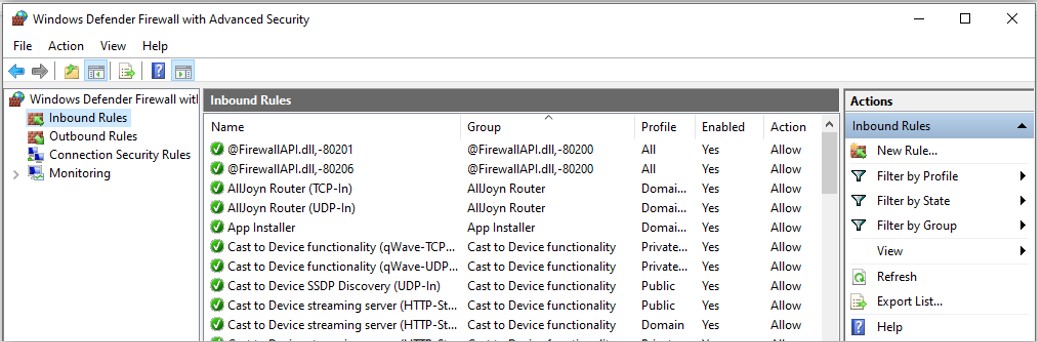
Click on Windows + R on your keyboard, type WF.msc and then select OK: this will open the Windows Defender Firewall with Advanced Security
Click on Inbound Rules on the left side and then on New Rule on the right side in the section Actions
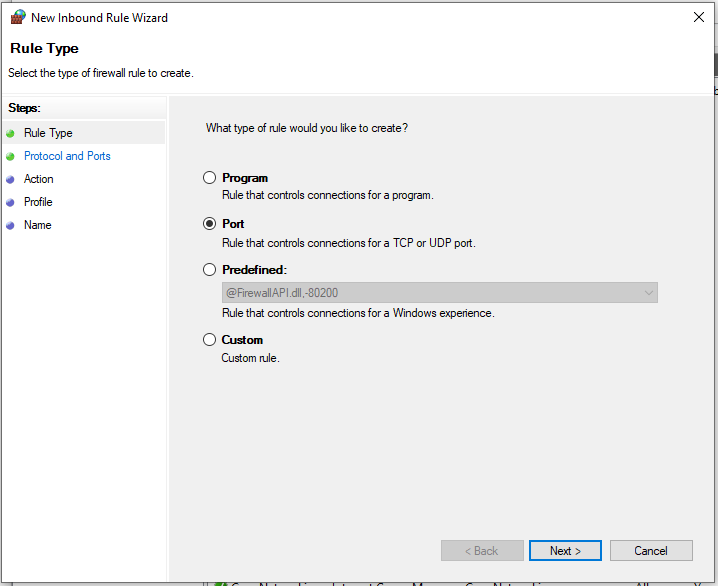
The New Inbound Rule Wizard will open: chose Port and click Next
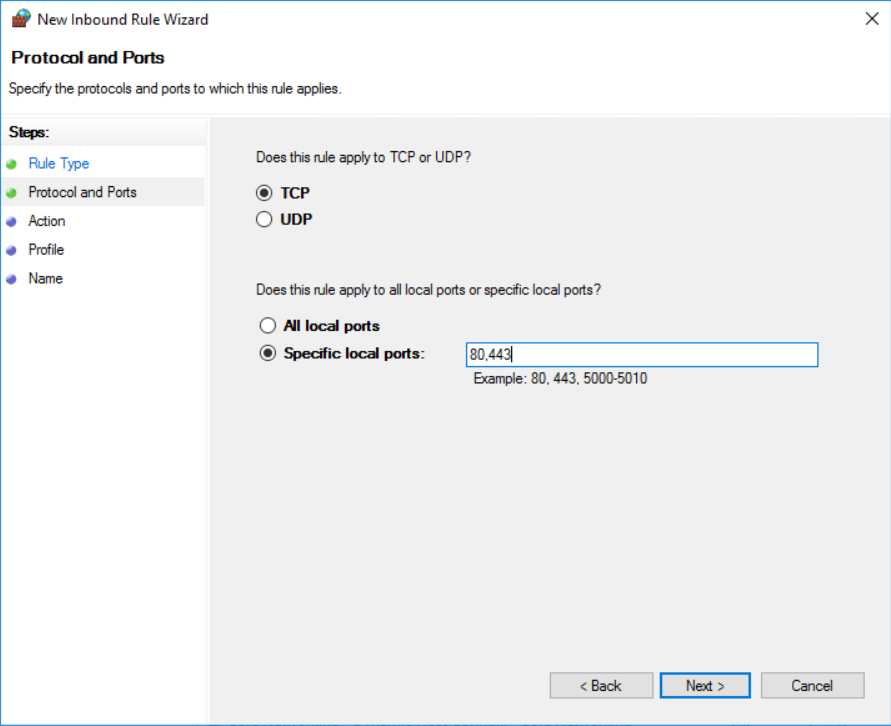
Select TCP and Specific local Ports: enter the port that you have defined for the dab Nexus application in Configuration.json. After you have entered the Port, click on Next
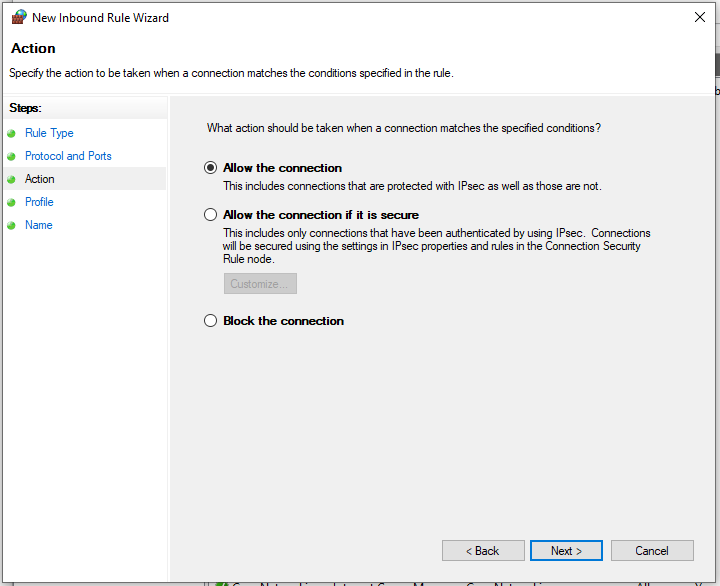
Activate Allow the connection and click on Next
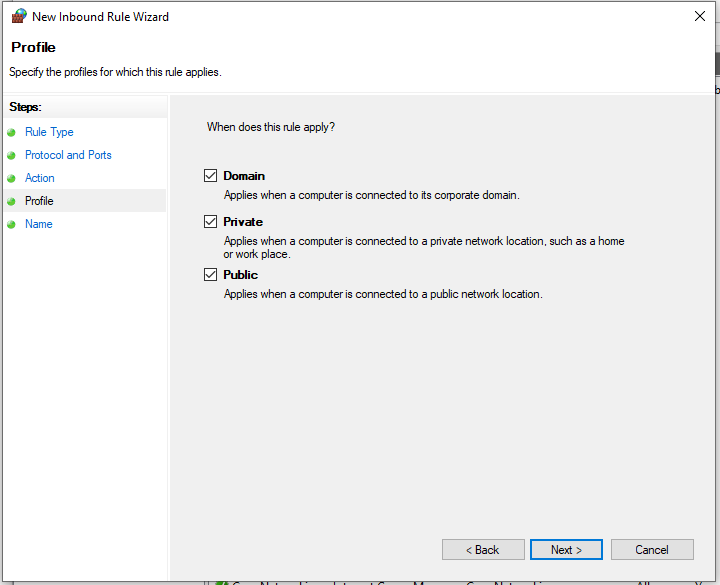
Activate all three options: Domain, Private and Public and click on Next. If the connection should only apply to certain network profiles due to the set-up conditions, select the corresponding profiles
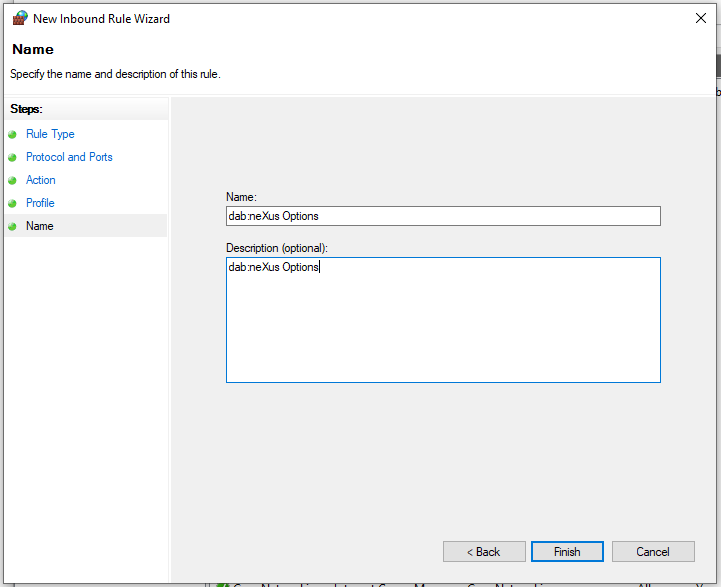
Enter Name and Description (optional) for the Rule and click on Finish