General Settings
Inkl. Firewall-Einstellungen
Analytics Settings
The general settings are read-only and must be adjusted via files.
First of all, access the dab AnalyticSuite Configurator.
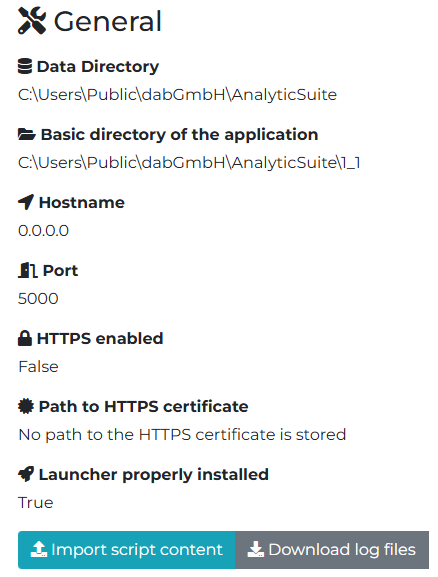
Data Directory
Open the file analyticSuite.config, which by default is located at %public%\dabGmbH\AnalyticSuite\1_1.
<?xml version="1.0" encoding="utf-8" ?>
<AnalyticSuite>
  <DataDirectory>%public%\dabGmbH\AnalyticSuite</DataDirectory>
  <BaseAddressAutoUpdateWebservice>https://update.dab-europe.com:3499/</BaseAddressAutoUpdateWebservice>
  <AnalyticSuiteToolBaseDirectory>%public%\dabGmbH\AnalyticSuite\1_1</AnalyticSuiteToolBaseDirectory>
  <Port>5000</Port>
  <IpAddress>0.0.0.0</IpAddress>
  <IsHttpsScheme>False</IsHttpsScheme>
  <HttpsCertificateFullPath></HttpsCertificateFullPath>
  <HttpsCertificatePassword></HttpsCertificatePassword>
</AnalyticSuite>
Now you can change the path within the DataDirectory tag and then restart the Windows service dab AnalyticSuite Options. Please note that under the path of the data directory, the Catalog folder, the FastForwardList.xml, the license files, the Users.xml and the AnalyticSuiteSettings.xml can be found. This means that if you change the path to the data directory, this data has to be taken over manually.
Basic Directory
If your application with the corresponding versions should be placed under a different path, open the analyticSuite.config file (which by default is located under "--> Windows + R --> %public% --> dabGmbH --> AnalyticSuite --> 1_1"). Change the path within the AnalyticSuiteToolBaseDirectory tag, copy the current version to the newly defined path, and restart the Windows service dab AnalyticSuite Options.
Port / IP-Address
If you would like to run the application under a different port or change the IP address under which the application should be accessible, open the analyticSuite.config file (which by default is located under %public%\dabGmbH\AnalyticSuite\1_1), change the port or the IP address and restart the Windows service dab AnalyticSuite Options.
Transport Security
To enable transport security (SSL) for the options dialog of the dab AnalyticSuite you need to have a PKCS#12 (PFX) file.
Configure dab AnalyticSuite for Transport Security
Place the certificate in pfx format on the server at a suitable location. Next, open the analyticSuite.config file, which by default is located at %public%\dabGmbH\AnalyticSuite\1_1. Set IsHttpsScheme to True. Enter the name of the certificate including the path within the tag HttpsCertificateFullPath and type in the password for the certificate within the tag HttpsCertificatePassword. Afterwards the Windows Service dab:AnalyticSuite Options has to be restarted.
<?xml version="1.0" encoding="utf-8" ?>
<AnalyticSuite>
  <DataDirectory>%public%\dabGmbH\AnalyticSuite</DataDirectory>
  <BaseAddressAutoUpdateWebservice>https://update.dab-europe.com:3499/</BaseAddressAutoUpdateWebservice>
  <AnalyticSuiteToolBaseDirectory>%public%\dabGmbH\AnalyticSuite\1_1</AnalyticSuiteToolBaseDirectory>
  <Port>5000</Port>
  <IpAddress>0.0.0.0</IpAddress>
  <IsHttpsScheme>True</IsHttpsScheme>
  <HttpsCertificateFullPath>C:\Temp\certs\analyticSuite.pfx</HttpsCertificateFullPath>
  <HttpsCertificatePassword>passwortFuerDasZertifikat</HttpsCertificatePassword>
</AnalyticSuite>
Firewall Settings
The release for the Windows services must be configured in the firewall settings. This can be done either via the port (port 5000 by default) or via each service individually.
Port Creation
If the access to dab AnalyticSuite is blocked, you can fix this by creating new rules in the Windows firewall. After this, access to dab AnalyticSuite is possible.
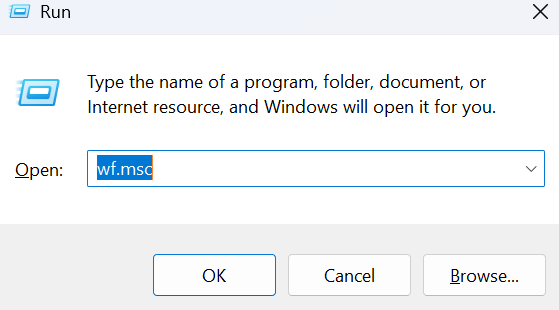
Press Windows-Key and R on the computer on which the dab:AnalyticSuite is installed to open the Run dialog.
There you have to enter wf.msc and click on OK
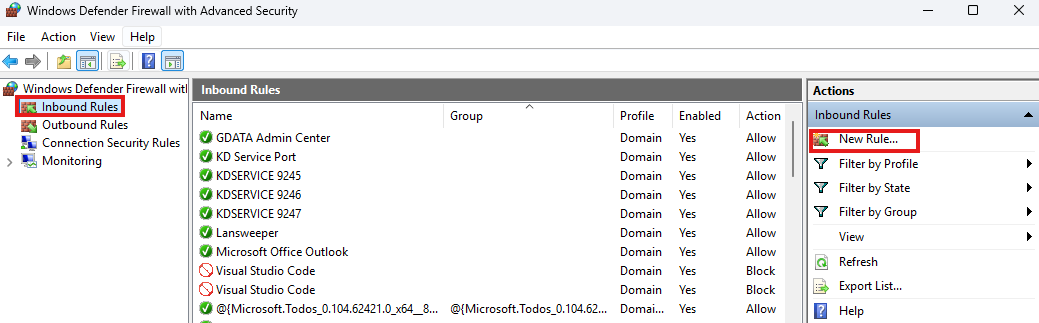
In the window Windows-Firewall with Advanced Security you have to click on Inbound Rules and then on New Rule…
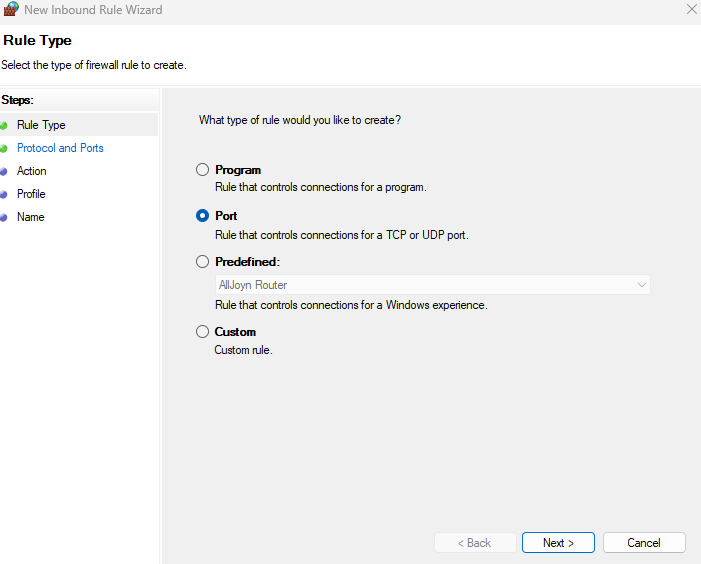
In the New Inbound Rule Wizard select Port and click on Next
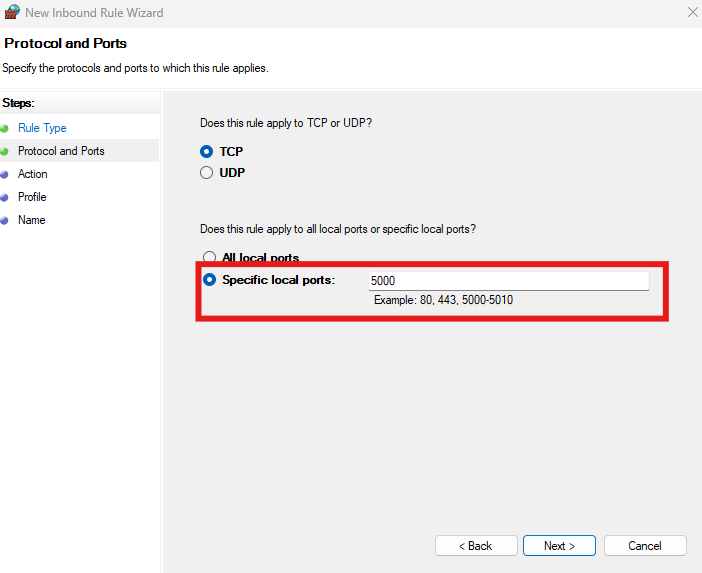
Choose Specific local ports and enter the port which is used by the options dialog (by default 5000).
Then click on Next
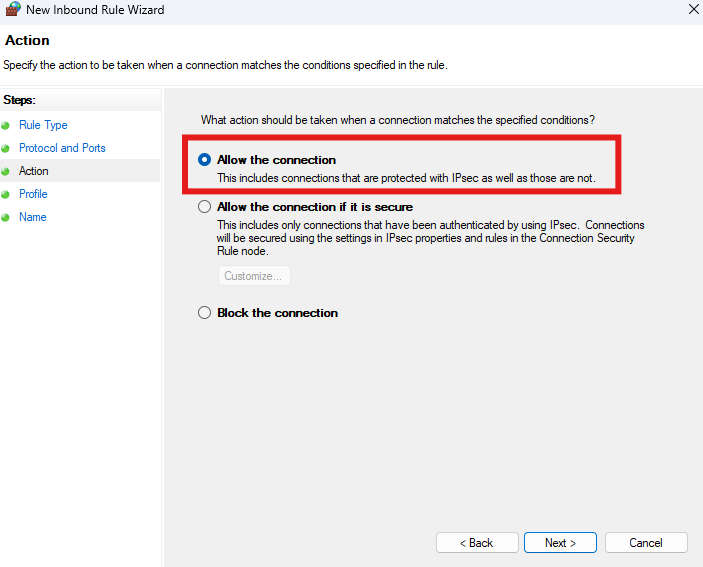
Choose Allow the connection and click on Next
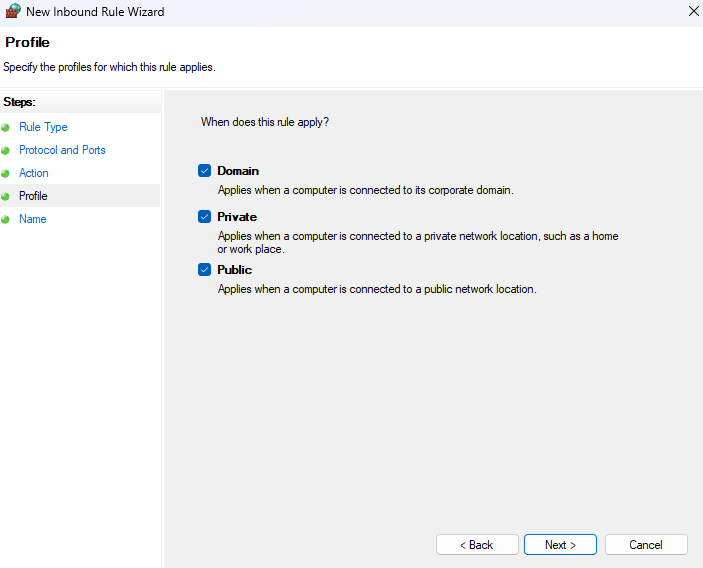
Check all checkboxes and click on Next
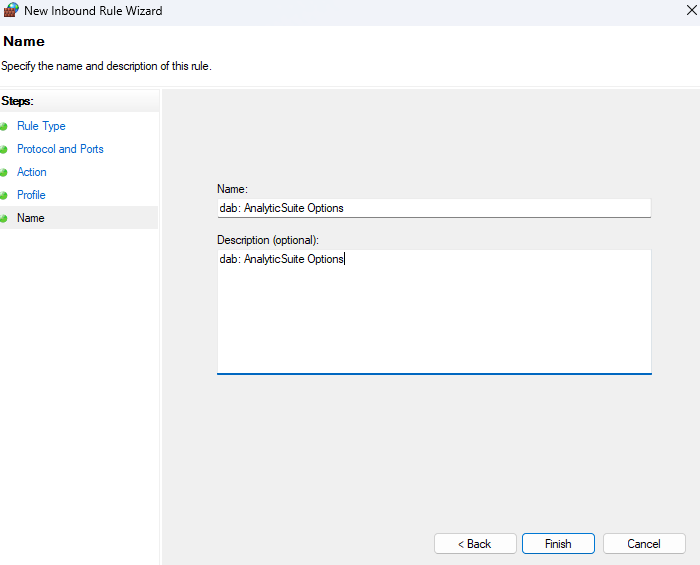
Enter dab AnalyticSuite Options in Name and Description and click on Finish