Setup MS SQL-Server
dab Nexus uses Microsoft SQL-Server to store:
- Application Data
- Extraction Data
- Result Data
The database for storing application data (you can e.g. call it NexusHome) must be created before dab Nexus is installed.
Instance Architecture
We strongly recommend hosting the Application Database on a separate SQL Server instance from your Extraction and Results databases. Using a shared instance can lead to resource contention, connection timeouts, and task status inconsistencies.
When dab Nexus performs large data extractions, the SQL Server instance experiences significant load. If the Application Database resides on the same instance, write operations for task states may fail or time out. This results in tasks appearing stuck in "Running" status or showing incorrect completion states.
For hardware requirements per instance, see System Requirements. If you need to migrate an existing single-instance setup, see Database Troubleshooting.
Database Collation
The database sorting *_CS_AS is expected.
Allow dab Nexus to access the database server
dab Nexus can log in to your database server using either Windows Authentication or SQL-Server Authentication. The recommended setup depends on how your deployment is structured.
- if dab Nexus and SQL-Server are running on the same server: Windows Authentication recommended
- if dab Nexus and SQL-Server are running on different servers: SQL-Server Authentication recommended
Windows Authentication
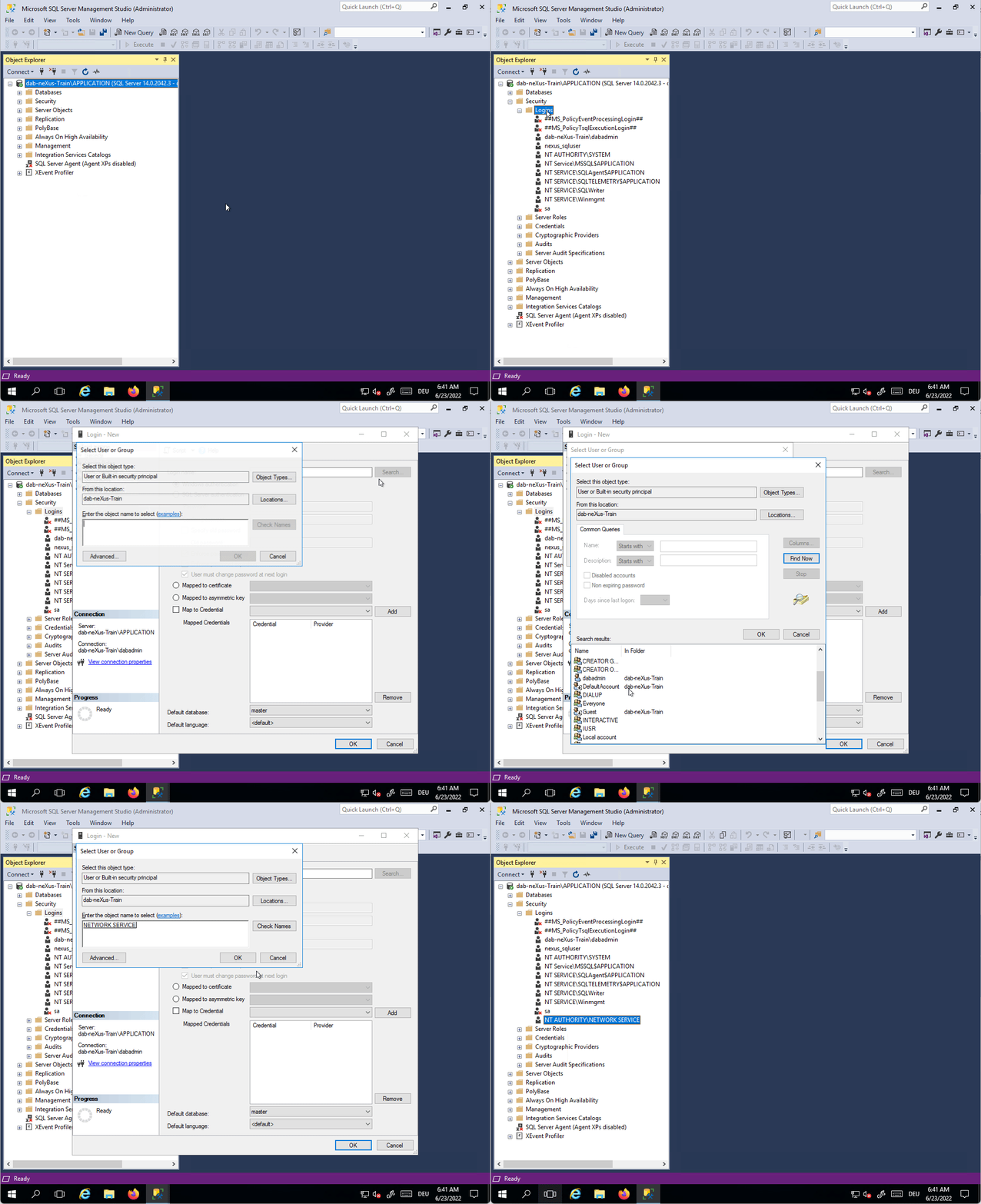
You need to add the Windows service user that runs the dab Nexus service as a login. Usually this is the user of the Network Service:
SQL Server Authentication
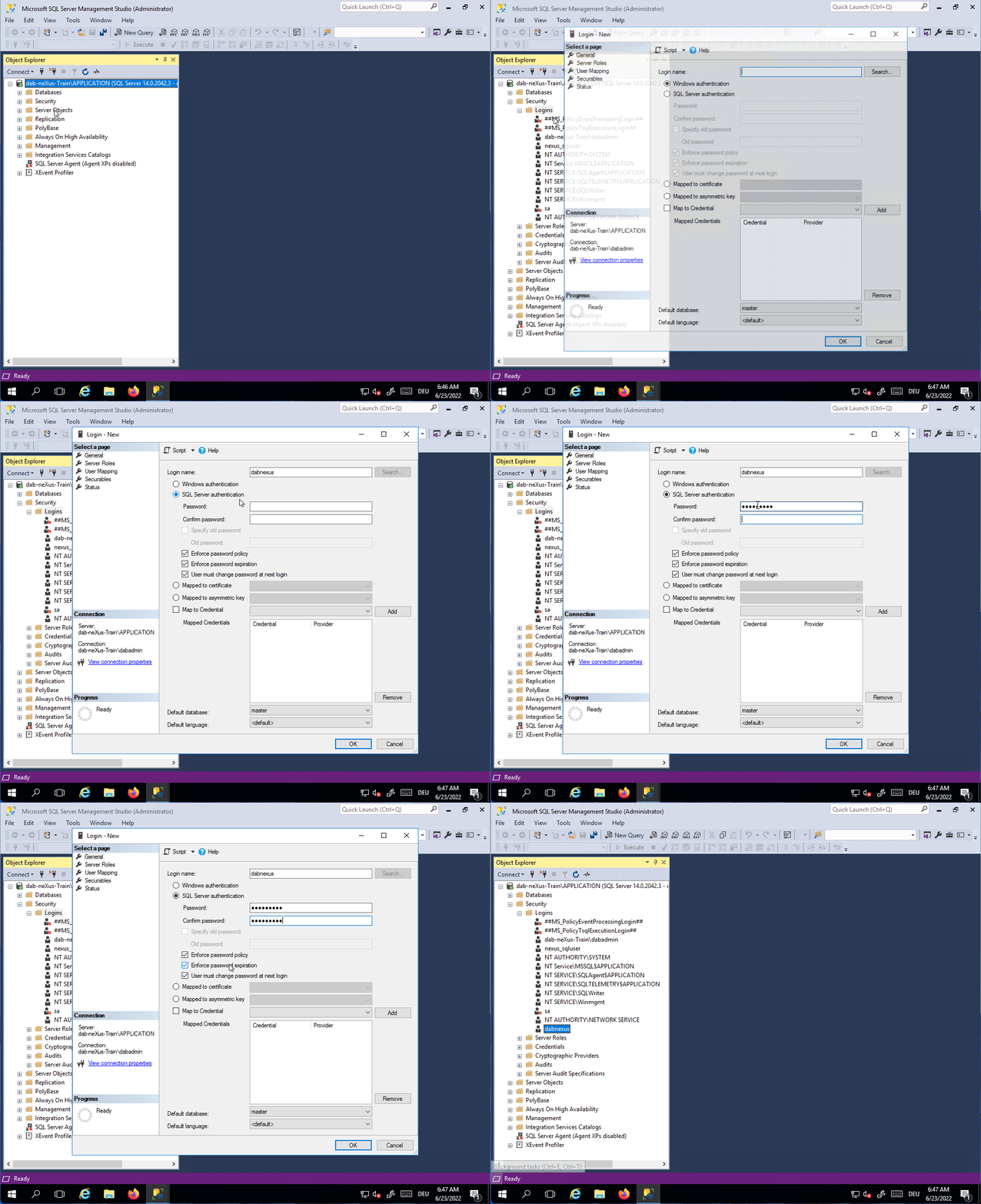
Create a SQL-Server user account and set a password. Make sure to disable the password expiration policy:
Permissions required by dab Nexus
Application Database
In the application database, it is recommended to assign the db_owner role to dab Nexus.
Alternatively, you can assign the following roles to dab Nexus:
- db_datareader
- db_datawriter
- db_ddladmin
Extracted Data and Results Database
If you want dab Nexus to be able to create databases automatically, give dab Nexus dbcreator on the server.
If you create the databases manually beforehand, assign the dbowner role to dab Nexus.
Encrypt SQL Server Connection
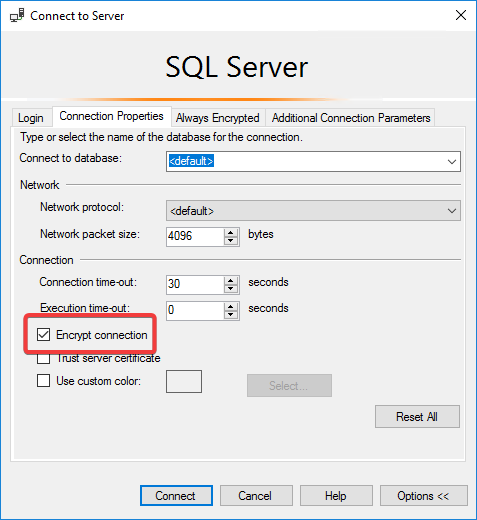
To encrypt the connection to the SQL Server, you only need to tick the Encrypted Connection checkbox.
For more information on how to configure encryption on the SQL Server itself, see this Microsoft Documentation.
To test if encryption is configured correctly, open the Options when connecting the server in SQL-Server Management Studio and tick the Encrypt connection checkbox.
If there are any errors, you can check the following things:
- The Enhanced Key Usage property of the certificate specifies Server Authentication
- The common name of the certificate matches the server name used to connect to the server
- If the SQL-Server doesn't start after setting up the certificate, make sure the SQL-Server user has permission to read the certificate