Cloud Connection to Azure Data Lake Storage
- ADLS operates under the Fabric Replication in the License.
- All requirements must be met - the information you need can be found here.
dab Nexus creates a directory for each table in the Storage Container. It will be named: /sap-export/<table-name>/.
The following convention applies to the Parquet files within this directory: yyyyMMddHHmmSS_SID_CLIENT_delta.
Overview
In the overview you can see all Cloud Connections that currently exist. You can search for a specific Cloud Connection, adjust the column selection or create a new Cloud Connection with the button New Connection.
Creation
Go to Settings > Cloud Connections, click on New Connection and Azure Data Lake Storage.
Enter a name for the new Cloud Connection.
ADLS Endpoint URL - you can find it in the Azure Portal under your Data Lake Storage Gen2 account in the 'Endpoints' or 'Data Lake Storage' section.
Directory Structure
- Flat: Files are stored in a flat hierarchy, typically in a single folder or in a few folders without a deep structure. There are no subdirectories that represent a temporal or incremental separation.
- Incremental: Uses a table folder + timestamped files structure. A dedicated folder is created for each extracted table, and each extraction run creates a new timestamped file within the corresponding table folder. This enables incremental processing of newly generated files.
File Format
- CSV
- Parquet
Authentication Types
- Service Principal Refer to the article for the Service Principal sections to add the corresponding API scopes and the roles required to be assigned. This step has to be completed to configure Service Principal. Configure the Access control (IAM): At the container and storage account level (in the Azure ADLS account), navigate to Access control (IAM) add Storage Account Contributor and Storage Blob Data Contributor roles for service principal.
- Tenant ID: you can find the Tenant ID in the Azure Portal under Microsoft Entra ID
- Client ID: you can find the Client ID in the Azure Portal in your App Registration
- Client Secret: Azure Portal > App Registration > Your App > Manage > Certificates & secrets > Value (this contains the Client Secret)
-
Shared Access Signature To use Shared Access Signature Authentication, go to your ADLS Storage account > Security + networking > Shared access signature. In the section 'Allowed resource types' all options must be activated (Service, Container, Object):
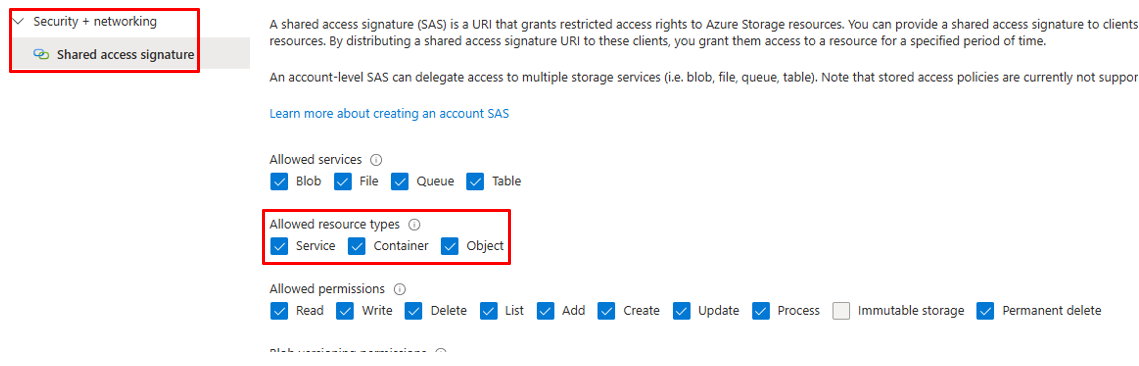 Click Generate SAS and connection string to create the SAS token. Copy the string.
 -
Access Key - obtain the Access Key from the ADLS Storage > Security + networking > Access keys > copy the value of Key
-
User Assigned Managed Identity - enter the Client ID
-
System Assigned Managed Identity
Test Connection - if the connection test fails, you'll get possible solutions. You can also see more details about the possible issue.
Permissions
If you don't select any Teams or Users, all Users of dab Nexus can use this Connection. If you select one or more Teams or Users, only these can use the Connection.
Edit
You can edit an existing Cloud Connection. Just click on their name in the overview and you get back to the settings of the Cloud Connection.
Deletion
The deletion of a Cloud Connection can affect active (scheduled) Tasks and may cause them to fail. This deletion cannot be undone.